What Is Rytr? A Beginner’s Guide to Its AI Writing Features, Pricing, and How to Use It
Rytr helps draft emails and posts, shorten text, and adjust tone. Explore Create, current pricing, and the steps to get started.
Information checked: November 5, 2026. Features and pricing are based on the official page content read that day. Please check the billing cycle and total amount on the signup screen. This article explains the product based on its official descriptions; it is not a hands-on review.
This article contains Rytr affiliate (referral) links. TOOLPORT may receive a referral fee if you sign up through these links. Referral fees do not affect the content or assessments in this article.
Introduction
You know what you want to say, but you’re unsure how to start an email. A post has become too long, burying the main point. You want to sound more polite than usual while keeping your own voice. Rytr’s Create helps with these kinds of drafts and rewrites. Official Create page
Alongside its writing features, Rytr now offers Engage, which organizes interactions and commitments. This guide focuses on Create, explaining how to assess the free allowance and paid plans and how to revise text with the browser extension. It is intended for people who want to see how well Rytr works with the writing they do themselves.
What Is Rytr?
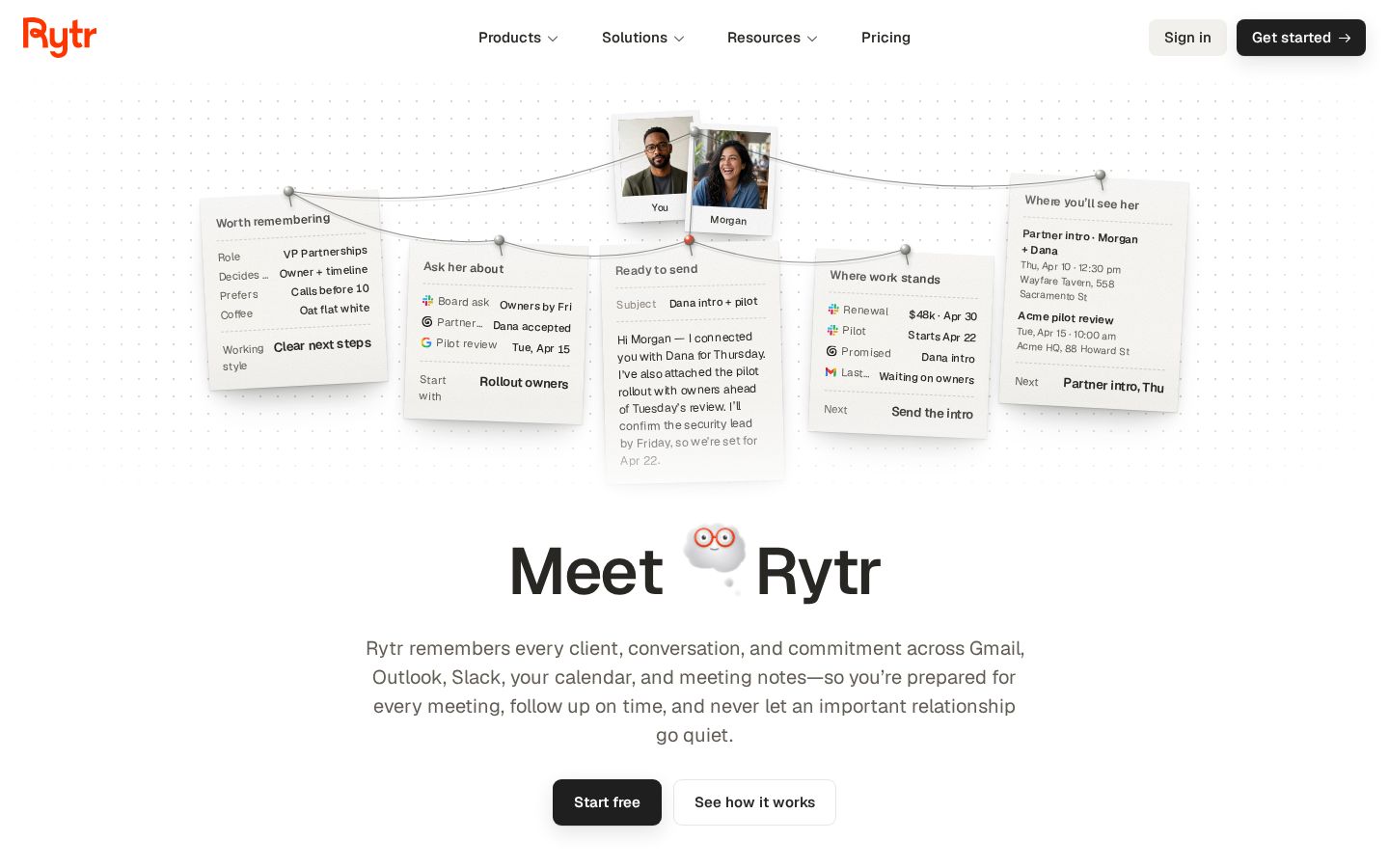
Rytr’s official website introduces Create for writing and Engage for conversations and follow-ups with contacts. Create covers text generation, shortening, expansion, translation, and tone adjustments, with emails, blogs, social media posts, and ads listed as use cases. Product overview, Writing use cases
When considering how to use it, it helps to separate what you want to write about from how you want to say it. The idea is to prepare the information you already have, then get help shaping it into a length and style suited to your reader.
The editorial team recommends starting with a single short announcement. Rather than expecting a finished piece on the first attempt, check whether you can shorten it or change its tone while preserving the original meaning. Decide whether the tool suits you by considering the whole process, including reviewing the result and deciding what to use.
What It Can Do: Key Features
Draft Emails and Posts
The official use cases include emails, blog articles, social media posts, and ads. The Create overview also shows examples such as product pages and blog outlines. Use case overview, Create features
For an event announcement, for example, first organize the date, location, intended audience, and registration method. One use case suggested by the editorial team is to use that material to develop versions for email and social media. Even with the same information, the amount of explanation needed depends on whether the reader already knows the details.
For a blog article, too, start by breaking down what readers want to know into headings instead of trying to produce a complete long-form piece right away. Preparing supporting information and concrete examples for each heading before refining the prose makes it easier to stay focused as you write. This is an approach to editing, not a promise of results from automatic generation.
Shorten Long Text and Add Explanation
The rewriting features are described as offering ways to shorten existing text, expand it, clarify its wording, or translate it into another language. The official examples also present the original and revised versions for comparison. Official rewriting page
The editorial team recommends working on a single paragraph with a clear purpose rather than changing an entire piece at once. Decide whether you want to shorten the introduction or fill in missing explanations before choosing an action. After shortening text, also check that dates and conditions have not been lost.
When expanding an explanation, check whether any facts absent from the original have been added. Treat help with rephrasing and the work of verifying information as separate tasks. Providing the necessary information first and comparing the result against it can help you decide which text to use.
Adjust the Tone for Your Reader
Rytr describes features for adjusting tone to suit your purpose and audience while maintaining your own writing style. The Create page lists support for 38 languages, including Japanese. However, listing a supported language does not guarantee that every passage generated in Japanese will sound natural. Voice and tone overview, Supported languages
Rather than simply aiming to be “polite,” think about the relationship: is this someone you are contacting for the first time, or someone you have spoken with many times? That makes it easier to choose appropriate wording. Even when you want to sound friendly, review the text to ensure that necessary conditions and requests have not become vague.
Revise Text in Browser Input Fields
The browser extension lets you select text in an input field and choose actions such as improving, shortening, expanding, or continuing it. You preview the new text, then choose whether to insert, replace, or copy it. Browser extension overview
This workflow is worth considering if you want to revise parts of your everyday writing. Start with a short draft before sending it, and check whether the revised section flows with the surrounding text. Even if an individual sentence reads well, a person will need to make final adjustments if forms of address or tone vary from one part to the next.
Pricing Plans
Current Plans and Listed Monthly Prices
These are the prices displayed on the official pricing page checked on November 5, 2026. Four plans are listed: Free, Lite, Personal, and Pro. The table below reproduces the monthly prices shown in dollars; it does not provide yen conversions or tax-inclusive billing amounts. Official pricing page
Plan | Monthly price shown when checked | Writing allowance | Key differences for Engage |
|---|---|---|---|
Free | Free | 10,000 characters per month | 1 connected source, 25 actions per month |
Lite | $9/mo | No monthly character limit | Includes Free features |
Personal | $19/mo | Includes Lite features | 2 connected sources, 250 actions per month |
Pro | $49/mo | Includes Personal features | All connected sources, 2,000 actions per month |
Annual billing is described as offering a 20% discount compared with monthly billing, with payment charged yearly. When subscribing, check the monthly or annual billing selection, final amount, and applicable plan. If you only need writing features, consider whether the additions in higher-tier plans are necessary for your use.
Do Not Confuse Characters with Actions
The pricing page lists writing character allowances and Engage action allowances separately. Lite removes the monthly character limit, but that wording should not be interpreted to mean that every feature is unlimited. Plan FAQ
The editorial team recommends first separating your needs into drafting and rewriting text, and organizing communications and contact information. If your main purpose is refining text, try the free allowance and assess how much you use each day. If you also want to work with the context of your communications, compare connected sources and action allowances as well.
What to Record When Trying the Free Allowance
When trying the free allowance, keep track of more than how much text you generate: note what you had to change before using it. The editorial team suggests checking four areas: proper names, numbers, tone, and length. Even if you get many suggestions, include the work involved in your assessment if you need to rewrite them extensively yourself.
Daily emails and a monthly blog article involve different amounts of work. Start by choosing a few types of writing you regularly do, then check whether drafting, shortening, or rephrasing helps. This gives you a clearer reason for choosing a plan. Base your decision on the steps that proved useful rather than simply on an “unlimited” allowance.

How to Get Started: Revise Your First Text with the Extension
These steps follow the official browser extension overview. Here, we cover selecting a short draft and viewing a suggested revision. We have not tested the exact button layout after login or the quality of Japanese-language generation firsthand.
1. Add the Extension from the Official Page
Follow the link on Rytr’s browser extension page to the Chrome Web Store. The official instructions describe adding the extension, choosing which sites to use it on, and starting to browse or write. Official setup guide
Prepare a short practice text whose content you can verify yourself. For an internal scheduling announcement, for example, list the date and time, location, people you want to attend, and whether a reply is needed. You can use fictional information for this exercise. The initial goal is to understand the steps for using the tool and checking its output.
2. Choose a Site and Prepare Your Original Text
The extension is described as allowing you to enable or pause it for individual sites. Choose where you want to use it and prepare the draft you want to revise. Extension settings
One preparation method suggested by the editorial team is to make a separate bulleted list of information to retain. Even when shortening a passage, preserve the information readers need to make decisions, such as dates, deadlines, and participation requirements. Setting criteria before revising helps you judge suggestions on more than readability alone.
3. Select the Text and Describe the Changes
Select text in an input field, then choose an action such as shortening or improving it, or describe the changes in your own words. Text revision controls
An example instruction might be: “Keep the date and participation requirements, and shorten the introduction.” This is an editorial example, not a prompt whose results we have tested. Rather than asking for “better writing,” we recommend deciding what to change and what to keep.
Changing tone, length, and structure all at once makes it harder to tell which changes helped. Try steps that are easy to review, such as adjusting the length first and then revisiting the wording.
4. Read the Preview and Check the Meaning
Review the new text before choosing an option such as replacing or copying it. The official description presents a workflow in which the original text is not replaced before you review the revision. Preview explanation
We recommend reviewing the information first, then the relationship with the reader, and finally the tone. Check that numbers and dates are unchanged, that no new requests have been added, and that commitments have not become stronger than intended. Even if a suggestion reads naturally, do not use it as-is if it changes the meaning.
5. Finish by Reviewing the Surrounding Text
Read the entire piece, including the section you have chosen to use. Make forms of address, sentence endings, and paragraph lengths consistent, and check that readers know what they need to do. Treat finishing a draft and sending it as separate steps. The official description also shows people reviewing replies created with the extension before sending them. Handling replies and sending
During your first trial, consider keeping the original and final versions side by side. If you can explain what became easier to read and where manual edits were needed, it will be easier to decide when to use the tool next.
Who It Is and Is Not Suited For
The editorial team’s assessment, based on the official features and usage allowances.
Suited for
- People who want a draft to help them start writing emails or social media posts.
- People who want to shorten their own writing and adjust its tone for the reader.
- People who want to review suggested revisions before incorporating selected parts.
Not suited for
- People who want to publish text without fact-checking or rereading it.
- People who want to use it without deciding why they are writing or which conditions must be preserved.
- People who want to keep generating more than 10,000 characters per month on the free allowance.
How It Differs from Similar Tools
Grammarly’s AI Writing Assistant also describes drafting and adjusting length and tone. Rytr highlights its use-case-based Create features alongside Engage, which handles the context of conversations and contacts. Official Grammarly page, Official Rytr website
Decide what to compare based on whether you simply want to refine text or also organize information before contacting someone. We make no claims about which tool produces more natural Japanese or offers more accurate proofreading, as we have not tested them with the same text. We recommend trying them with your everyday emails or posts to see whether they suit the parts you want to improve.
Points to Keep in Mind
Separate Style Improvements from Fact-Checking
Do not accept a revision solely because it is shorter or more polite. The editorial team particularly recommends comparing prices, schedules, specifications, and conditions with the original material. If supporting information is missing, verify it before refining the wording.
Also watch for changes in how strongly a statement is worded. Changing “we plan to” to “we will” changes how readers interpret it. Distinguish confirmed decisions, proposals, and wishes, and preserve the original intent as you finish the text.
Keep the Descriptions of Create and Engage Separate
Engage’s official page describes the ability to check sources and have people review important actions. Do not interpret this to mean that every piece of text written by Create automatically comes with external evidence. Engage review features
Being clear about which feature you will use also helps clarify the results you expect. If you want to refine text, review suggested revisions in Create. If you also want to use conversational context, check Engage’s connected sources and usage allowances. Considering them in this order helps you choose without assuming a broader set of features than you need.
Summary
Rytr Create is an option for people who want help drafting and rewriting text to suit their purpose and writing style. Start with a short passage and see whether you can incorporate suggested revisions while retaining the necessary information. Considering writing volume separately from Engage usage also makes it easier to choose a plan.
Sources (Page Content Checked on November 5, 2026)
- Official Rytr website: The roles of Create and Engage.
- Create: Writing, rewriting, and supported languages.
- Writing use cases: Uses for writing.
- Rewrite and improve text: Shortening, expansion, and translation.
- Voice, tone, and languages: Writing style and tone.
- Browser extension: Setup, text selection, previews, and handling sending.
- Pricing: The four plans, character allowances, actions, and annual billing terms.
- Human review and control: Engage sources and action review.
- Grammarly AI Writing Assistant: Features of the comparison tool.