What Is HeyGen? AI Avatar Video and Translation Features, Pricing, and How to Use It
Explore HeyGen’s AI Studio, avatars, script and voice controls, and video translation. Learn how the current credit system works and what to check when creating a short explainer video.
Information checked on November 5, 2026. This article is based on the text of official pages. We did not create avatars, generate videos, purchase a subscription, or publish content. Prices are in US dollars.
Introduction
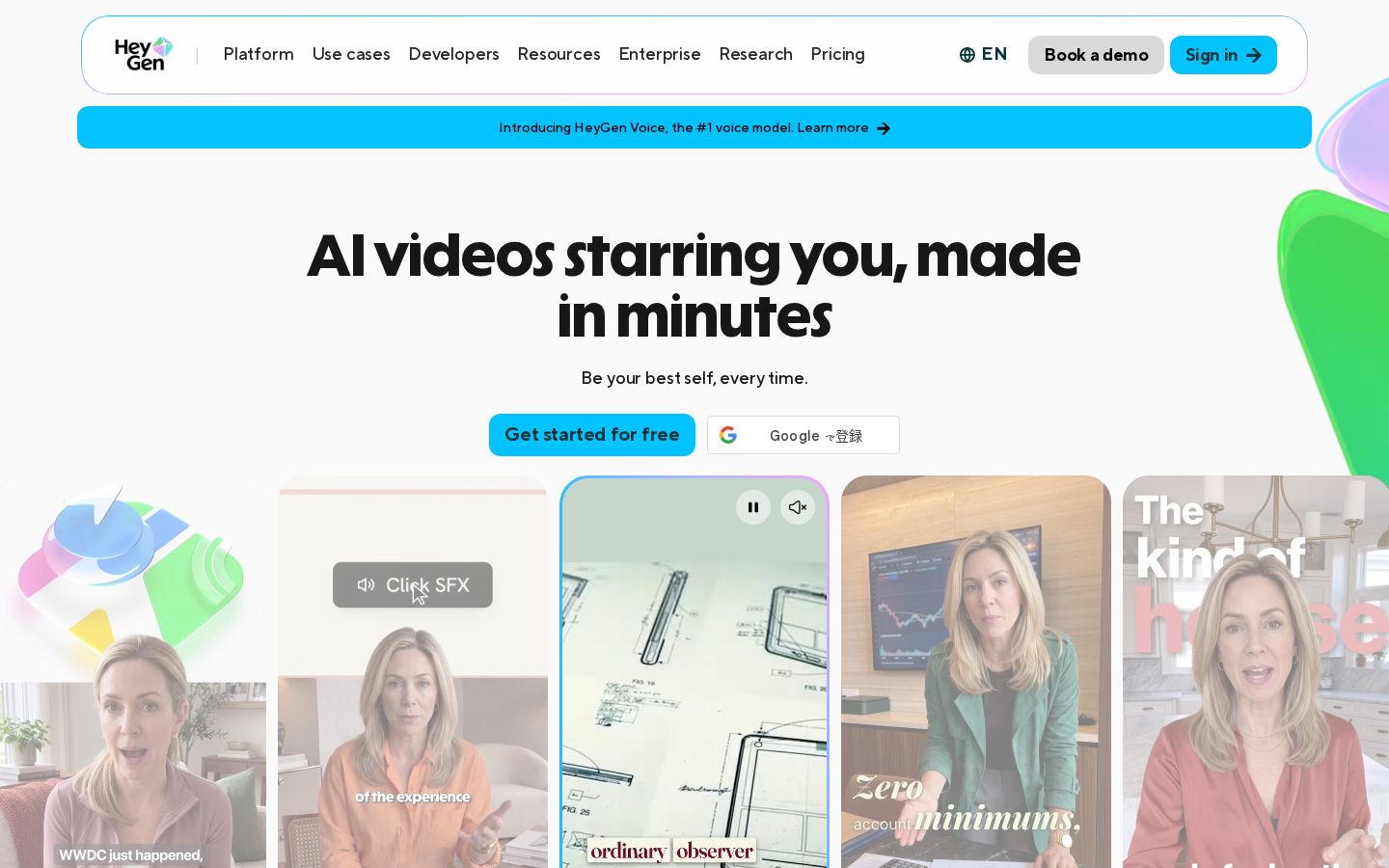
Reshooting a presenter every time an explanation changes can be a lot of work. HeyGen lets you create videos in which an avatar speaks from a script, or translate existing videos into another language. In AI Studio, you build videos by combining a script, presenter, voice, and on-screen elements. HeyGen official website
When choosing a tool, look beyond the avatar’s appearance: consider whether the narration is easy to follow, the information is accurate, and you can keep making revisions. This article uses a short instructional video as an example to explain the features, pricing, and checks to make before and after generation.
What Is HeyGen?
HeyGen is a video creation service that combines footage of a presenter with audio, text, images, and other elements. The official AI Studio guide explains how to choose a preset avatar or your own avatar, set the script and voice, and add backgrounds and text. AI Studio overview
The TOOLPORT editorial team sees it as an option for situations where you want to manage your messaging in writing, such as product explanations, how-to videos, training introductions, and updates to instructions. You need to plan both who appears to be speaking and what they will say.
Even if an avatar looks natural, you still need to verify that what it says is factual. Check company policies, service prices, coverage, and similar details against the source materials before including them in the script.
You also do not need to show a presenter throughout the entire explanation. You can structure the video around its content—for example, focusing on screens or diagrams when demonstrating a task, and showing the presenter for the introduction and recap.
What You Can Do: Key Features
Create Avatar Videos from a Script
In AI Studio, you can give each scene its own script and set an avatar and voice. The official guide explains how to change avatars and add scenes to divide up the content. How to create your first video
The editorial team recommends limiting each scene to one main point. Dividing the video into sections—such as the purpose first, then the steps, and finally any precautions—also makes it easier to find the section you need to update later.
Instead of putting the entire script on screen, you can show key points or the controls being discussed. Thinking about how the narration and visuals share the information can help you plan a video that avoids becoming a monotonous read-through.
Adjust the Voice, Pronunciation, and Pauses
The official help pages explain how to choose a voice, adjust settings such as speed, and preview the script’s audio. The script guide also explains how to insert a Pause and use Pronunciation to adjust how individual words are spoken. Writing a script
The editorial team recommends first listening to a sentence that includes product names, abbreviations, and numbers. If you choose a voice using only ordinary sentences, you may miss how it pronounces the terms you actually need.
A sentence that reads well on the page can feel long when spoken aloud. Consider avoiding multiple instructions in a single sentence and leaving pauses so listeners have time to understand.
Create Your Own Avatar
HeyGen offers Digital Twin, which uses footage of the person being represented. According to the official consent video guide, creating a video-based Digital Twin requires a consent video from that person. About consent videos
The guide explains that even when you create an avatar of someone else, that person must record the consent video themselves. Simply having photos or videos of someone does not give you permission to make them appear to say whatever you want.
The editorial team also recommends trying the workflow with a preset avatar first, then deciding whether you need to appear in the video yourself. If you use footage of yourself, deciding how it will be used and who will handle updates can make ongoing management easier to plan.
Translate Existing Videos
The video translation workflow involves importing your footage and selecting the source language, target language, and processing method. There are separate options for translating only the audio and for also matching the mouth movements. Getting started with video translation
Japanese is listed on the official translation page. However, the help documentation explicitly states that the feature does not automatically translate text, graphics, or burned-in subtitles within the video. Translation features
The editorial team recommends checking the audio, subtitles, and on-screen text separately. Even if the voice is in another language, viewers may be confused if the buttons they need to use or the text in reference materials remain in the original language.
Build a Video Structure from an Idea
HeyGen presents Video Agent as a way to start creating videos from prompts. It also describes a workflow for adjusting text, colors, timing, layouts, and other elements in AI Studio after generation. Video Agent Official website
The editorial team suggests distinguishing between situations where you need ideas for a video’s structure and those where you want to use a finalized script. If you already have an approved explanation, check that any generated rewording has not changed its meaning.
Pricing Plans
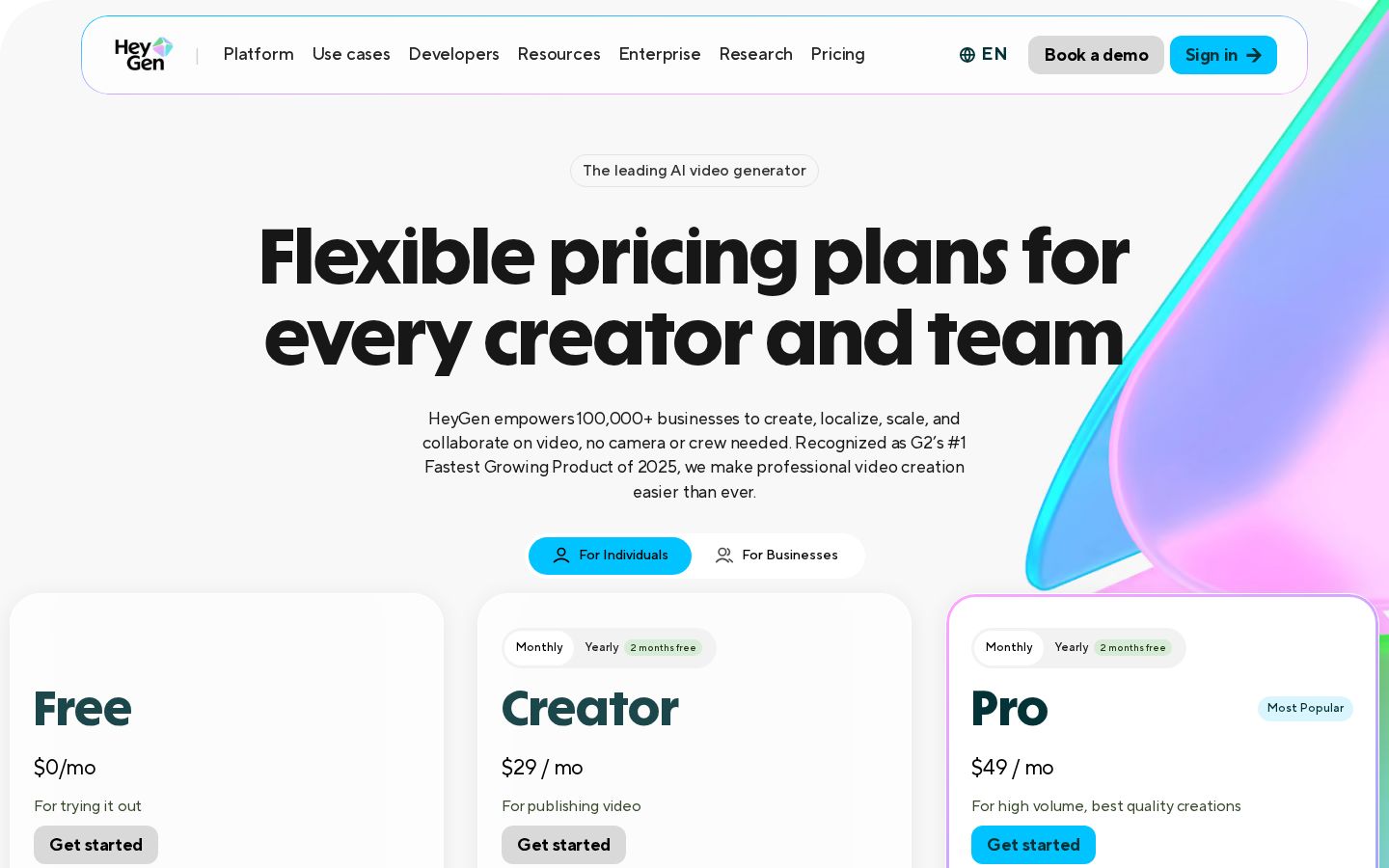
At the time of checking, the official pricing offered a free tier and paid plans that use credits. The table below shows the starting options for monthly billing. Official pricing
Plan | Monthly billing | Key allowances and conditions |
|---|---|---|
Free | $0 | 3 videos per month, up to 1 minute each, with a watermark |
Creator | $29 | 600 credits per month, 1080p, watermark removal |
Pro | From $49 | From 1,000 credits per month, 4K, and other features |
Business | $149 + additional seat fees | 1,500 credits per month, shared workspace, and other features |
Enterprise | Custom terms | Contracts and usage allowances for organizations |
Additional Business members are listed at $20 per seat per month. Creator also displays an equivalent monthly price of $24 when billed annually, so distinguish the billing cycles when comparing it with the $29 monthly option.
The official FAQ explains that the credits consumed by videos and assets vary by model, length, and generation complexity. Check not only which models are available, but also how much of your allowance you can use with each model.
The documentation states that unused credits on monthly billing roll over to the following month, while credits on annual billing accumulate until the annual renewal date. Unused credits cannot be carried over after cancellation, so check your balance alongside your renewal date.
The editorial team recommends estimating costs based not only on finished videos, but also on how many revisions and translated versions you expect to create. Start with one representative short video to understand the work involved before producing multiple languages or long videos in a batch.
A feature’s inclusion in the pricing table does not mean that it is available without limits. Check each requirement that matters to you, including video length, resolution, avatars, and translation proofreading.
How to Use HeyGen: Create a Short Instructional Video
The following steps are based on the official AI Studio guide, with example checks suggested by the editorial team. They do not represent results from actually generating avatars or translating videos.
1. Define Your Audience and Script
For the editorial team’s example, imagine a video explaining to new participants where to find reference materials. Set a simple goal: viewers should understand where to go, what to look at, and what to do if they need help. Then prepare a short script.
Narrowing down what you want to communicate at the start makes it easier to match the presenter’s explanation with the on-screen information. Rather than reading out lengthy policies or every detailed condition, consider separating the overview from links or directions to further information.
2. Choose the Format and Presenter in AI Studio
The official instructions describe going from Create to Create a Video, choosing landscape or portrait orientation, and then selecting a creation method such as AI Studio. Getting started
Choose an avatar that suits the video’s purpose. The editorial team recommends looking beyond the impression the face makes: check whether you can fit the necessary materials and text on screen, and whether viewers can easily see both the presenter and what is being explained.
3. Divide the Content into Scenes
Use Add Scene to add scenes, then enter a script for each one. In the editorial team’s example, the first scene explains the purpose, the next shows how to open the materials, and the last explains where to get help. Scripts and scenes
Match each scene with the images and headings it needs. Check that the location being described in the narration matches the one shown on screen.
For how-to videos in particular, avoid mixing in fictional screens that resemble the real interface. Where accuracy matters, use screens or materials you have checked, and make sure the explanation matches what is currently displayed.
4. Listen to the Audio and Adjust Pronunciation and Speed
Once you have chosen a voice, preview the script’s audio. Adjust the pronunciation of any proper nouns or numbers that are hard to understand, and insert pauses where needed.
The official help documentation explains that you cannot preview the complete avatar video while editing; you need to generate it to see the avatar in motion. Treat checking the audio before generation and reviewing the visuals afterward as separate steps. About previews
The editorial team recommends checking whether you can follow the steps after listening to the audio once. If listeners have to keep pausing to understand, review where you divide the information as well as the speaking speed.
5. Review the Generated Video
Check the script and settings, generate the video, and play the finished result from beginning to end. Look at whether the mouth movements, voice, subtitles, and image timing align with the explanation.
The editorial team recommends comparing the final video with the script you checked before generation. Even if the wording is correct, the message can become harder to follow if scenes change too quickly or the wrong text is emphasized.
Play the saved video as well, checking its length, image quality, watermark, and how the audio ends. If you share it externally, clearly identify the reviewed version so that a file from before the revisions is not used by mistake.
If you are creating translated versions, start by checking the content in one target language. Make sure someone who understands that language can cross-check the meaning, proper nouns, subtitles, and on-screen text.
Who HeyGen Is—and Is Not—Suited For
Who It Suits
In the editorial team’s view, HeyGen suits people who want to manage explanations in writing and update instructional or training videos. It is an option to consider when planning a repeatable production workflow with a consistent way to present both the speaker and supporting materials.
It is also an option for people who want to make existing explainer videos available in another language. This assumes, however, that someone is available to review the translation and any text remaining on screen.
Who It May Not Suit
If the focus is on a person’s real reactions, the immediacy of an interview, or a record of what happened on location, an avatar-led explanation alone is unlikely to serve as a substitute. First clarify what you need the video to deliver.
The editorial team also suggests taking your time before adopting the tool if you cannot set aside time for review and revisions after generation. Having a moving presenter on screen is not the same as having an accurate, easy-to-follow explanation.
How It Compares with Similar Tools
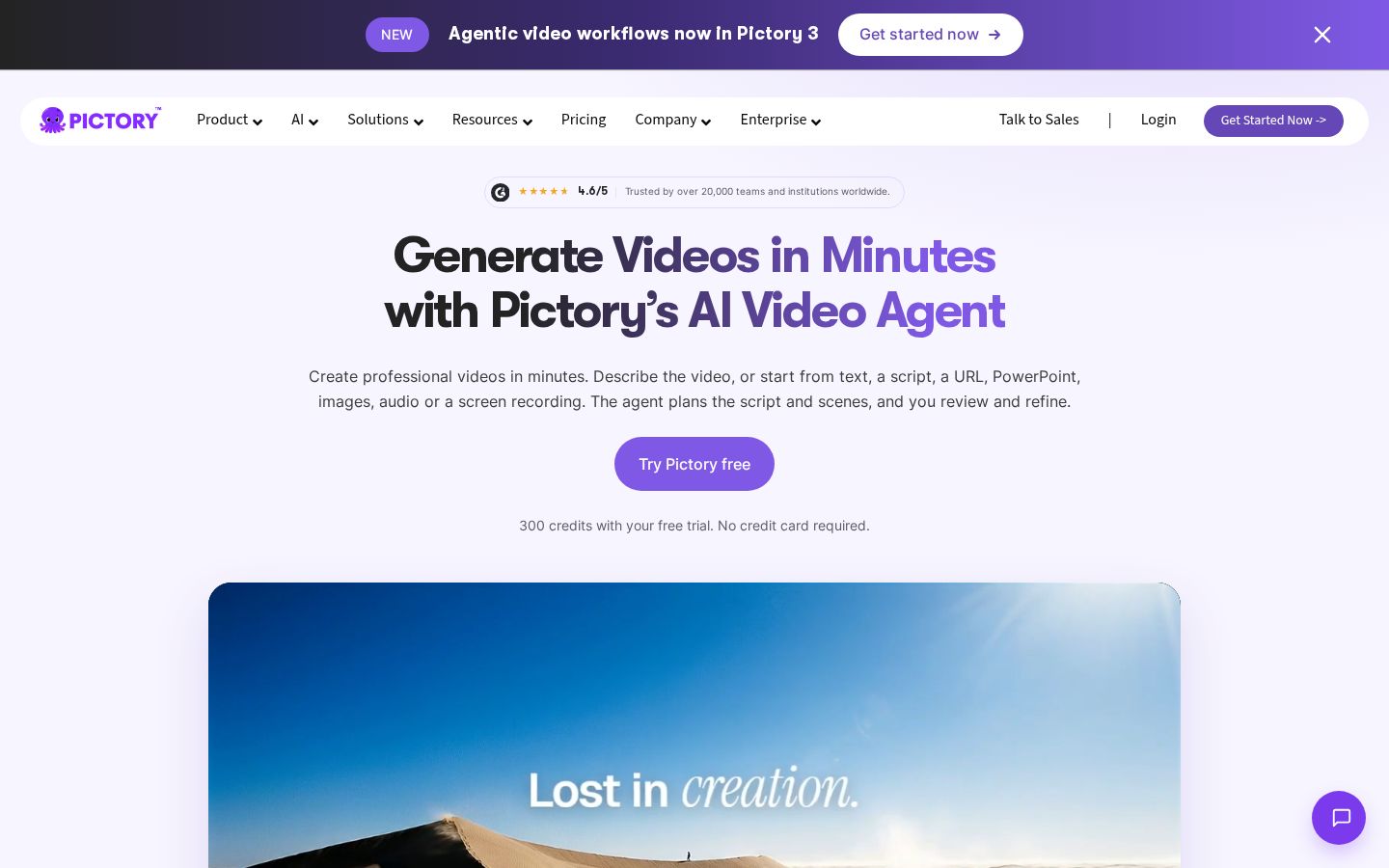
Pictory describes a workflow that creates scripts and scenes from articles, documents, and URLs, then lets you adjust the visuals and audio. Pictory official website
The editorial team suggests comparing the tools based on whether your priority is how the presenter appears or how the overall video is structured from existing articles and materials. Both offer a broad range of features, so avoid choosing based on a single feature name.
Comparison point | What to check |
|---|---|
Presenter | Appearance and presentation, voice, and script revisions |
Structure | How the explanation aligns with images and reference materials |
Multilingual support | Input and output, proofreading, and on-screen text |
Ongoing use | Update frequency, usage allowances, and who handles reviews |
Using the same short explanation to compare the production and review workflows can make it easier to judge which tool suits your needs.
Things to Keep in Mind
When using someone’s likeness or voice, confirm the necessary consent and intended use. You also need to take care not to present an avatar’s speech as a recording of what the person actually said at that moment.
The official help documentation recommends using a source video in a single language for translation. It explains that mixing multiple languages can lead to failed translations or inaccurate transcripts, so check the source material as well. Translation requirements
Even when AI rephrases text to make it easier to read, check the facts separately. Confirm that the subject, conditions, and exceptions are still intact, and make sure someone familiar with the content can assess the final version.
Conclusion
HeyGen combines avatars and voices with a script to create explainer videos and translated versions. Following a workflow that checks the audio first, then reviews the movement and visuals after generation, can help you identify what needs revising.
When assessing pricing, compare the current credit system with the features you need. Start with one short instructional video and review everything from the script and voice to the visuals and saved file to see whether it fits your production needs.
Sources
The text of all official sources was checked on November 5, 2026.