What Is Pictory? Features, Pricing, and How to Turn Articles and Scripts into Videos
Explore Pictory 3’s AI video agent, URL-to-video creation, and voice and scene editing. Learn how credit-based pricing works and how to review a short explainer video.

Information checked: November 5, 2026. This article is based on a review of the content on the official pages. We did not create videos, purchase a subscription, or download any videos. Prices are in US dollars.
Introduction
You have an explanatory article or internal reference material, but turning it into a video stalls at writing a script or choosing visuals. Pictory is a service that creates video outlines and scenes from text, URLs, slides, audio, and other inputs. Its current official website focuses on the AI video agent in Pictory 3. Pictory official website
The workflow involves reviewing the AI-generated outline, then refining the text, visuals, and voice to work toward a finished video. Rather than transferring the source article directly into video, it is important to arrange the information in an order viewers can understand in one viewing. This article uses a short explainer video as an example to introduce the features, pricing, and review process.
What Is Pictory?
Pictory is a video creation service where you provide your goals and source materials, build an outline, and review and edit scenes. The Pictory 3 overview describes a workflow in which you explain the video you want, supply materials, answer setup questions, and review the script, scenes, and preview. Pictory 3 overview
Our editorial team sees it as an option for people who already know what they want to explain and are exploring how to present it as a video. Material intended to be read requires a different approach from material presented through narration and on-screen visuals.
For a how-to guide, for example, you could start by stating the goal and then show each step in order, rather than reading out every detail and aside in the text. Decide what to include in the video while staying faithful to the source material.
The video may not need to cover everything on its own. If you use it to present an overview and direct viewers to the original article for detailed conditions, you can explore ways to keep the video short while still making all the information available.
What You Can Do: Key Features
Build an Outline with the AI Agent
In Pictory 3, you start by specifying the topic, audience, purpose, and length. During setup, you choose the voice, media types, aspect ratio, layout, and brand kit, then review the outline before generating the final video. How to work with the agent
Our editorial team’s example prompt is: “A short video explaining what to prepare and the first steps to take, for someone reading this material for the first time.” Describing what viewers should understand afterward, as well as the feel of the finished video, gives you a basis for evaluating the result.
When reviewing the AI’s proposal, assess the sequence, omissions, and unnecessary explanations separately. Even if it looks polished, an outline that leaves essential background information until later is worth fixing first.
Create a Script from a URL
URL to Video reads public blog posts, product pages, help articles, and similar content, then creates a script from the key points. According to the official guidance, you can edit the script before creating scenes. Create a video from a URL
Our editorial team recommends using an explanatory article you manage and comparing the generated script with the original. Start with details whose meaning must remain intact, such as prices, intended audiences, conditions, and the order of steps.
Being able to import a URL does not necessarily mean you can reuse its content in a video. Check the permitted uses of the material, and if attribution is required, decide how to provide it in the video or its description.
Adjust Visuals and Audio
The official website describes editing options for replacing scene visuals, choosing a voice, and adding subtitles. The voiceover page explains how to select “Voiceover” from “Audio,” preview a voice, and apply it. Add audio to a video
You can also upload your own narration and use Auto Sync to align it with the scenes. Whether to use an AI voice or an existing recording depends on your purpose and preferred speaking style.
Our editorial team recommends testing how the voice works with a short passage first. Check the pronunciation of proper nouns, how clearly numbers come across, and where pauses fall, so you know what needs adjusting before moving on to the full text.
Choose visuals that support the explanation. Office footage that fits the mood may not communicate how an operation works or how products differ. Consider how each visual relates to the content, using your own screen recordings or photos where needed.
Generate Images and Video Assets
Pictory’s AI Studio is presented as a feature for generating images and videos from text and using them in scenes. The official guidance also covers modifying images with instructions and using reference images. Official introduction to AI Studio
Our editorial team recommends distinguishing visuals that demonstrate specific facts from imagery intended to convey a mood. Avoid presenting a generated screen as an actual interface from a real product.
When you need to communicate an actual item’s appearance or specifications accurately, real photos or screenshots may be more appropriate. Judge your choices by whether viewers can understand without being misled, rather than by how many assets you can add.
Pricing Plans
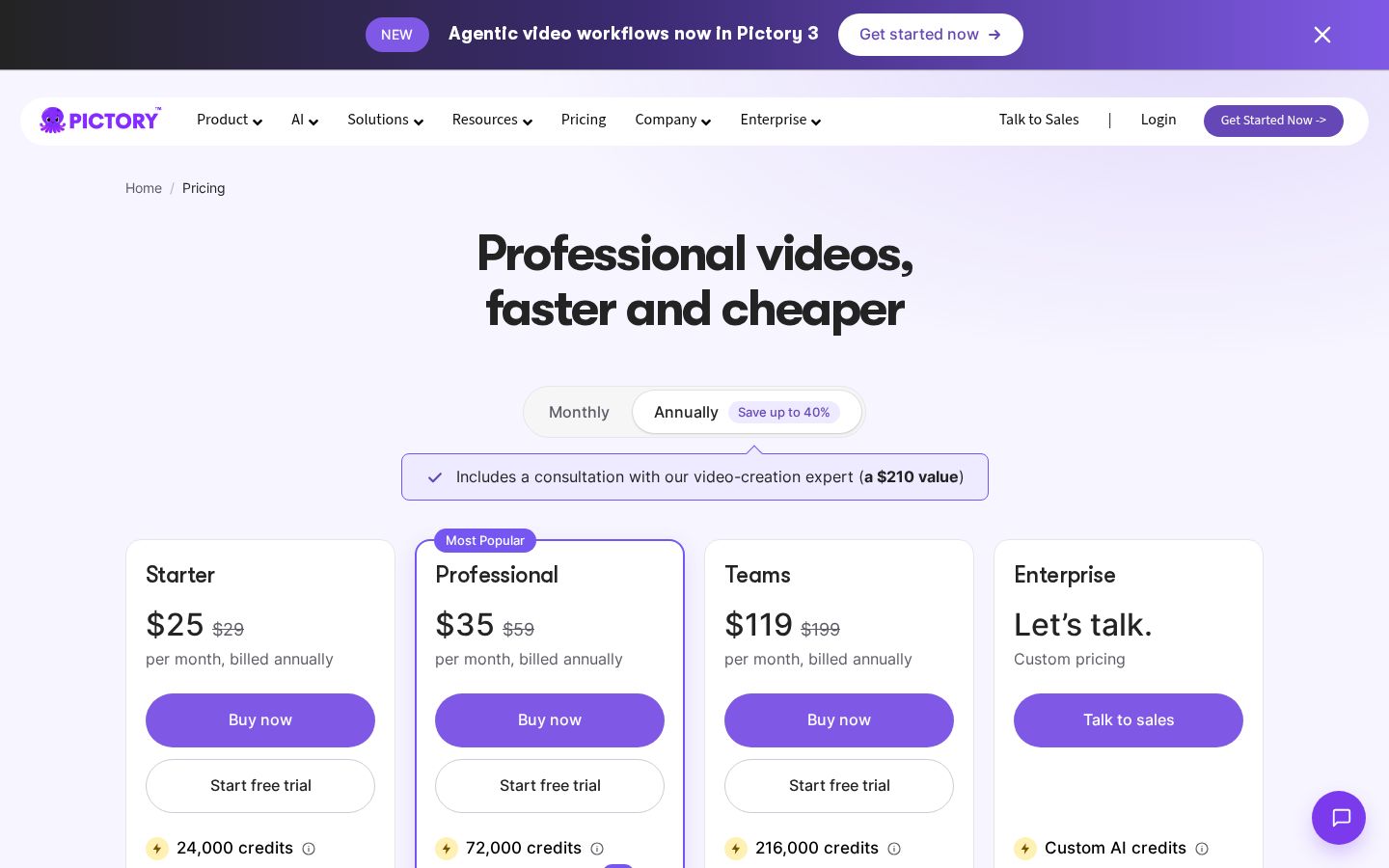
Official pricing uses a credit system, with Starter, Professional, Teams, and Enterprise plans listed. The table below shows monthly billing prices. The monthly equivalents differ with annual billing. Official pricing
Plan | Monthly billing | Monthly credits | Key inclusions |
|---|---|---|---|
Starter | $29 | 2,000 | 1 user, 1 brand kit |
Professional | $59 | 6,000 | 5 brand kits, additional voice and avatar features |
Teams | $199 | 18,000 | 3 or more users, sharing and collaboration |
Enterprise | Custom terms | Custom terms | Organization-level agreements and administration |
With annual billing, the monthly equivalents are $25 for Starter, $35 for Professional, and $119 for Teams. The official explanation states that annual billing provides the full year’s credits upfront, while monthly billing provides credits each month.
The free trial is listed as 14 days, with 300 credits and 3 projects. Trial exports are limited to 720p and include Pictory branding, while standard paid plans support up to 1080p.
Credits are a shared allowance used across multiple AI features. Usage varies depending on the operation you choose, such as image, video, or audio generation, so avoid assuming that the same number of credits will always produce a video of the same length.
Our editorial team recommends considering how much asset generation you intend to use, as well as how many videos you plan to make. Building mainly with images you already have involves a different usage pattern from generating new footage for every scene.
The same pricing page also lists “all models and features” alongside plan-specific language and avatar limits. If you need Japanese or a particular feature, check the detailed terms and the interface rather than relying on the headings alone.
How to Turn an Explanatory Article into a Short Video
The steps below are based on the official guidance for Pictory 3 and URL to Video. They are examples of what to check when working through the process, not results from videos our editorial team created and measured.
1. Define Your Audience and Main Takeaway
Read the source article and write one sentence stating what you want viewers to understand. For a long article, one approach is to choose a single question to answer rather than compressing everything.
In our editorial team’s example, the video explains preparation and the first steps to someone using a tool for the first time. It leaves out detailed examples of advanced uses while retaining the necessary background and basic sequence.
2. Provide the URL or Materials and Your Video Requirements
When using a URL, the workflow involves entering a public page and choosing the video type, where it will be posted, its length, and other settings. For pages that require a login, the official FAQ suggests pasting in the text. URL to Video instructions
In Pictory 3, you review settings such as the voice, media, and aspect ratio before proceeding. Our editorial team recommends deciding where the video will be viewed first, so the choice between landscape, portrait, and square is settled before you are partway through production.
If you use internal materials, check whether you are allowed to enter that content into the video creation service. No actual customer information or unpublished materials were entered for the example workflow in this article.
3. Cross-Check the Script and Scenes
Once the script is generated, compare it with the source article. Check whether the sequence has changed, conditions have been omitted, or definitive claims absent from the original have been added.
Our editorial team recommends writing down one thing to communicate and one thing to show for each scene. For example, if the narration says “check the connection,” pair it with a screen that makes that action clear.
Some sentences are accurate in writing but difficult to understand after hearing them just once. If a sentence contains lengthy modifiers or several conditions in succession, split it into shorter sentences while preserving the meaning, and consider subtitles that let viewers reread it.
4. Refine the Voice, Visuals, and Subtitles
Preview the voice and check its pronunciation and speed. Replace visuals that do not match the script, and review subtitle breaks and positioning. The official guidance describes making adjustments through chat or the editor as needed.
Our editorial team recommends checking both whether the explanation is understandable by listening and whether the key points can be followed on screen with the sound off. If you use background music, compare the audio to make sure it does not interfere with the narration.
When displaying product names or step numbers, make sure they match the narration. Resolve small inconsistencies, such as showing a different button while the voice says “Next.”
5. Preview, Then Generate the Final Video
The official Pictory 3 guide describes reviewing the entire preview, making corrections, and then using “Generate video” to generate and download the final video. Steps through final generation
Our editorial team recommends checking the saved file as well as the preview. Play it back to confirm that the beginning and ending, audio, subtitles, aspect ratio, and length are as intended.
If you need to make changes, grouping your notes by cause, such as “script,” “media,” “audio,” or “display,” makes it easier to return to the relevant part. Before reworking the whole video, identify exactly what is unclear and in which scene.
If someone else will review the finished version, giving them access to the source article alongside the video makes fact-checking easier. Including timestamps and specific changes with feedback can reduce misunderstandings.
Who It Is and Is Not Suited For
Who It Suits
In our editorial team’s assessment, Pictory suits people who already have articles, explanatory text, or reference materials and want to present them in video form. It is an option for those who want to build videos around the relationship between scripts and scenes without relying solely on filmed footage.
It may also be an option for people who regularly create explainers in a consistent format. It lends itself to a workflow in which you maintain a consistent purpose and look while reviewing and updating the content.
Who It May Not Suit
It is harder to recommend to people who want to use a summarized script as an accurate explanation without checking the original. Shortening content can leave information out, so you need to judge what can safely be omitted.
If your main goal is to show actual operations or product details accurately, but you cannot supply your own screenshots or assets, we also think you should carefully check whether generation alone can meet that goal.
How It Differs from Similar Tools
OpusClip describes a workflow for creating short clips from existing videos and adjusting subtitles and framing. OpusClip official website
Our editorial team finds it helpful to compare Pictory as an option for building an outline from text and reference materials, and OpusClip as an option for finding short clips within existing videos. Both offer a broad range of features, so start with the material you already have.
What you start with | What to check when comparing |
|---|---|
Articles or how-to guides | Script content and how it aligns with scenes |
Long recorded videos | Which sections to clip and the context of what is said |
Narration | Synchronization of audio, visuals, and subtitles |
Plans for ongoing production | Ease of revision, usage allowances, and export conditions |
Compare the tools with the same finished video in mind, considering everything from preparing materials to the final review. A longer feature list does not necessarily make your own production process easier.
Things to Keep in Mind
The pricing and interface descriptions refer to current official information, including the transition to Pictory 3. Avoid assuming that plan names or minute allowances mentioned in older articles still apply.
Access to stock media is separate from having the rights to the materials you upload or the source articles you use. The official guidance for URL-to-video creation also asks users to confirm their rights to use the source page. Commercial use FAQ
Our editorial team recommends presenting generated visuals in a way that prevents them from being mistaken for an actual record, even when they are only used to support an explanation. Pair factual statements with verified information and appropriate media.
Conclusion
Pictory is a service for building video outlines from text, reference materials, and URLs, then adjusting the audio and scenes. Pictory 3 describes a workflow in which you tell the AI agent your goal and work through repeated reviews and revisions.
Before adopting it, check the credits, billing cycle, required languages, and export conditions. Start by choosing one short explanation, then compare the source information with the script, the audio with the visuals, and finally review the saved video.
Sources
The content on all official pages was checked on November 5, 2026.