What Is OpusClip? AI Video Clipping Features, Pricing, and How to Use It
Explore OpusClip’s clip generation, caption editing, and reframing features. Learn about Japanese support, free plan limits, and what to check when turning a source video into short clips.
Information verified on November 5, 2026. This article is based on a review of the official pages. We did not upload or edit videos or post to social media. Prices are in US dollars.
Introduction
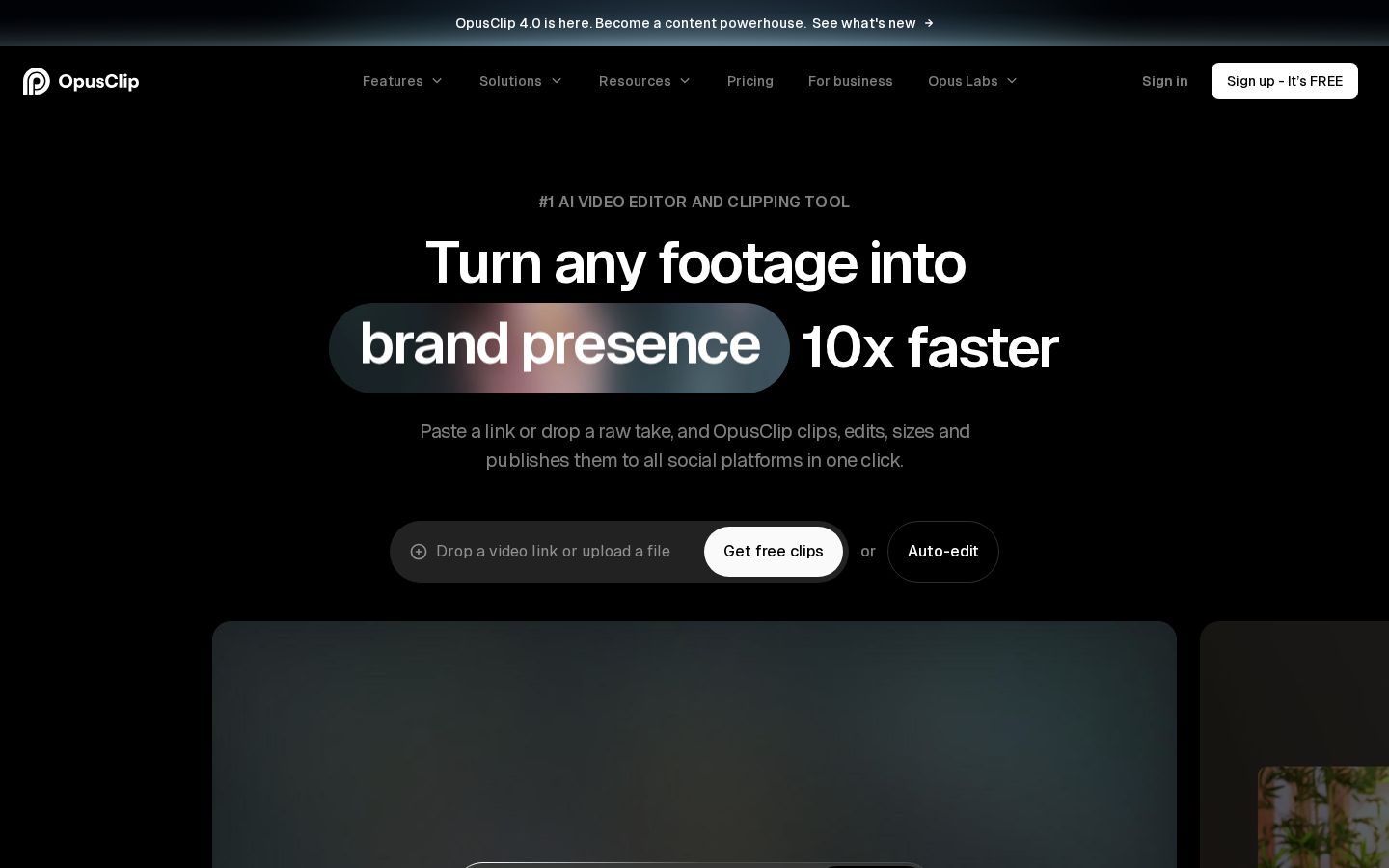
You have long interviews or recorded livestreams, but not enough time to turn them into short videos. OpusClip analyzes source footage, generates potential short clips, and helps refine captions and framing. Its documented workflow starts with a link or file and proceeds through editing and exporting. Official OpusClip website
Generating plenty of clips does not mean they are ready to publish. You still need to check whether essential context is missing, captions are accurate, and necessary information is visible in a vertical frame. This article explains how to approach choosing short clips from a single explainer video.
What Is OpusClip?
OpusClip is a service for finding moments in existing videos and turning them into short-form content. Its ClipAnything documentation describes using visual, audio, and emotional cues to find scenes, including in footage with little dialogue. How to use ClipAnything
Our editorial team considers it an option for people who already have footage and want to decide what to show from it. It is easier to assess the service by focusing on how it condenses existing material, rather than how it creates something to film from scratch.
For example, you might extract just the answer to one question from a recording that explains a topic in depth. Choose clips based on whether viewers can understand what is being discussed without having watched the original video.
Reviewing one clip from start to finish makes it easier to gauge how much revision is needed than planning a high volume of daily posts from the outset. Look at how many clips you have reviewed and made usable, as well as how many were generated.
What It Can Do: Key Features
Specify What You Want to Find in a Clip
The official ClipAnything instructions take you through adding a video, choosing a model, and optionally specifying a genre or describing the scenes you want to find. They also explain how to choose a caption style or opt for no captions. Steps for using the model
An example prompt from our editorial team is: “Find the section that explains common mistakes beginners make when getting started.” Specifying what you want to communicate and to whom gives you a basis for evaluating the results, beyond simply asking for exciting moments.
Treat the generated clips as options to review. Even if a clip opens with a strong statement, reconsider its boundaries if the conclusion or explanation cuts off halfway through.
Edit Caption Text and Appearance
The official help documentation explains how to select words or sentences to correct captions and adjust their font, size, color, position, and more. It distinguishes between deleting captions alone and removing the corresponding video as well. Changing and deleting captions
Our editorial team recommends checking proper nouns and numbers first. Correct the content before styling it, so you do not end up visually emphasizing a misrecognized company or product name.
Japanese is on the official list of supported languages, but it was listed as beta at the time of our review. The documentation notes that some emojis and keyword highlighting may be inaccurate. Supported languages
Go beyond confirming that Japanese input is supported: check sentence breaks, highlighted words, and whether viewers have enough time to read the text. The more specialized terminology your footage contains, the more important it is to check the captions against the actual content.
Adjust the Layout for a Vertical Frame
OpusClip describes reframing and tracking features. Its editing help also explains how to change the layout of individual scenes as well as an entire clip. Official features Adjusting the layout
Our editorial team recommends checking more than whether the speaker fits in the frame. Look for cropped-out objects being demonstrated, diagrams used in explanations, and text on shared screens.
Cropping landscape material into a vertical frame can leave the speaker visible while hiding what they are explaining. Adjust the presentation as needed, aiming to make it clear what is being shown even without sound.
Adjust Clip Length
The official help explains how to remove unwanted sections through the transcript or timeline and use Add a section to bring in another part of the original transcript. Adjusting clip length
Our editorial team recommends reviewing a little before the discussion begins and a little after its conclusion. Removing necessary conditions or exceptions to make a clip shorter can make the original statement appear to mean something different.
Deciding “What is the one thing this video should communicate?” makes it easier to choose which moments to keep than trying to fit several topics into one short clip. This is an editorial decision for a person to make, separate from the tool’s automated judgments.
Pricing Plans
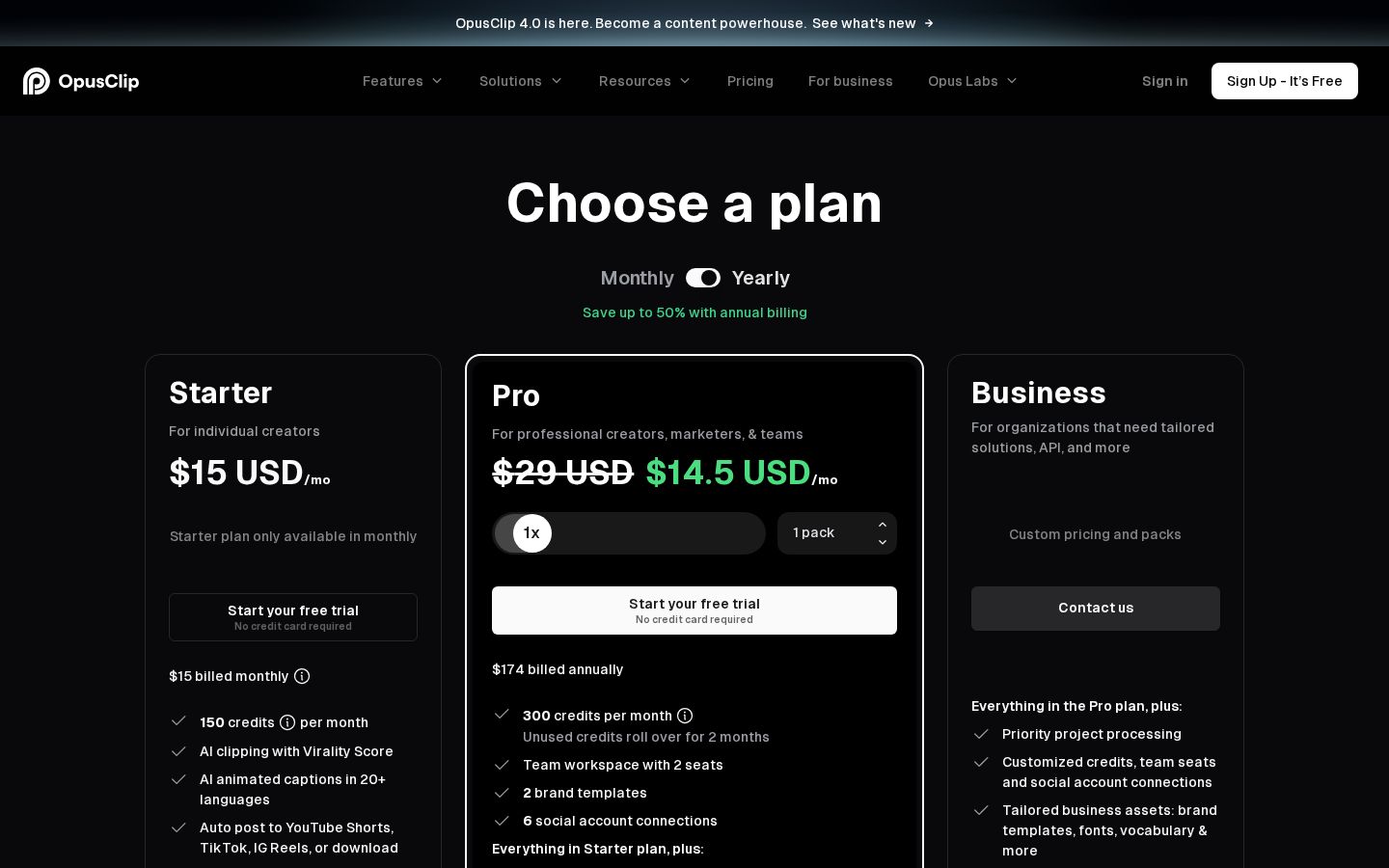
The official pricing page lists Free, Starter, Pro, and Business. The table below shows the monthly billing comparison we verified. Pro also lists an annual option at $174 per year, equivalent to $14.5 per month, so avoid mixing billing cycles when comparing prices. Official pricing
Plan | Listed monthly price | Monthly credits | Key terms verified |
|---|---|---|---|
Free | $0 | 60 | Watermark, no editing, time limit on exports |
Starter | $15 | 150 | Editing, watermark removal, 1 brand template |
Pro | $29 | 300 | Additional aspect ratios, scheduled posting, team seats, and more |
Business | Custom terms | Custom terms | Tailored team access, integrations, and more |
The Free plan documentation states that generated clips can no longer be exported after 3 days. Treat reviewing clip options for free and editing them later for delivery as separate considerations.
Standard clipping is described as using 1 credit per minute of source video imported. This is not based on the length of the finished short clip. The documentation also explains how to narrow the time range to be processed. How credits work
For example, processing a 30-minute source video uses 30 credits. Consider this usage separately from how many clips you ultimately use, and think about whether you need to process all of a long recording every time you only want one clip.
The official help states that monthly credits are valid for 60 days, while annual credits are issued for the full year at purchase and remain valid for 12 months. Check the expiration rules for your chosen billing cycle rather than relying solely on the abbreviated rollover information on the pricing cards.
Our editorial team recommends considering the typical length and number of your source videos alongside the time you have to review them. Being able to process more footage will not get you to publication if you cannot keep up with reviewing the content.
How to Use It: Turn an Explainer Video into a Short Clip
This walkthrough combines official instructions with review examples from our editorial team. It is not based on results from actually importing a video or publishing it to social media.
1. Choose Your Source Video and the Purpose of the Clip
Start by describing the intended audience and purpose in one sentence. Our editorial team’s example is: “Give people who are about to choose a tool one point to watch out for.” The content you want to keep will differ depending on whether the clip is promotional, explanatory, or intended to direct viewers to the original video.
Choose footage you are allowed to use. Being able to enter a URL does not establish that you are free to reuse the video. Also check your agreements with the people appearing in it and how any materials shown on screen may be used.
2. Add Your Footage and Set Processing Options
Follow the official guide to add footage through a link or file. Check the model and caption format you want to use, and specify a genre or the scenes you want to find if needed.
Our editorial team recommends starting with a limited range to see what kinds of clips are generated. If the recording includes long setup periods at the beginning or end, identify the range containing the content you want.
If the footage already has burned-in captions, consider whether adding another layer would make them difficult to read. Look at the original video before deciding whether to add new captions.
3. Choose Clips Based on Their Content
Once clips are generated, watch each one from its opening through the middle to its conclusion. Check whether the topic is clear, whether it is clear who or what is being discussed, and whether the explanation cuts off halfway through.
Starter and Pro include Virality Score. The official documentation describes it as a rating from 0–99 based on factors such as the hook, flow, value, and trends. How the score works
Our editorial team treats the score as one way to compare clips. Do not view it as a guarantee of views or sales; prioritize whether the clip communicates accurately to your intended audience. Even a high-scoring clip can be rejected if it does not cover the topic you want to share.
4. Correct Captions and Adjust Start and End Points
Correct caption errors and revisit the clip’s boundaries if necessary remarks from before or after it are missing. Before making an edit, check whether you are changing only the captions or removing footage as well.
Our editorial team recommends making edits that affect the content first, then working on styling. Removing remarks can change caption breaks and which passages need emphasis, so adjustments are easier if you do not finalize the appearance too early.
Simply shrinking long captions to fit can make them difficult to read on a smartphone. Check whether they can be displayed in meaningful chunks and whether important words are too close to the edge of the screen.
5. Check Framing and Audio, Then Save
Check that the necessary subjects remain in frame when the speaker moves or shows materials. Also check whether captions obscure faces or hands, and play the entire clip.
Open the saved video in another player and check its length, audio, captions, and watermark. Compare what you saw in the editor with the contents of the file you will actually use.
When posting, review the title, description, destination, and visibility settings separately from the video itself. Even if automatic posting is available, it should not be a reason to skip reviewing the clip you created.
Who It Is and Is Not Suited For
Who It Suits
In our editorial team’s view, OpusClip suits people who regularly have long recordings and want to extract short topics from them. It is an option if you want to consider clip selection and caption work together for interviews or explainer videos.
It is also an option for people who can review the content after generation and make the necessary corrections. Having someone who understands the original statements review the clips makes it easier to assess the extracted content.
Who It May Not Suit
It is difficult to recommend for anyone who wants to publish every generated clip as is without reviewing the footage. Even if the results look natural, you need to compare them with the original content to check for missing context or conditions.
If you have no source footage and want to build a video from a script, the initial steps you need are different. Clarify where your production process starts instead of choosing a tool solely for the convenience of clipping.
How It Compares with Similar Tools
Descript describes an editing workflow that links a transcript to video and audio, allowing you to edit by deleting or moving text. Descript editing guide
Our editorial team finds it useful to compare OpusClip’s workflow for finding potential short clips with Descript’s workflow for restructuring spoken content through text. Their features overlap, so there is no need to assume that only one tool can perform a given task.
What you want to do | What to check |
|---|---|
Find potential short clips | Whether it can find the topics you want |
Reorder the discussion | How easy it is to move or correct remarks |
Work with Japanese footage | Input support and the effort needed to correct captions |
Produce content regularly | Footage volume, usage allowances, and review time |
Planning to finish one short clip from the same source footage makes it easier to compare editing convenience and costs.
Things to Keep in Mind
The official website uses language emphasizing views and growth, but this article does not treat those statements as guarantees of results. To evaluate performance, track clips created, clips published, views, and subsequent actions separately.
Check whether automatically highlighted captions match what the speaker intended to emphasize. If only numbers or definitive statements stand out, the clip can appear to make a stronger claim than the original explanation.
When extracting part of a long video, consider retaining information that helps viewers find the original. If there are conditions you cannot fully explain in the short clip, think about how to communicate them, including in the description.
Conclusion
OpusClip is a service for finding potential short clips in source videos and refining captions and framing. Japanese support was in beta at the time of our review, so it is best to consider the service on the assumption that you will review captions and content after generation.
Assess pricing based on the amount of source video processed, rather than the length of the finished video. Start by choosing one clip and checking its context, captions, framing, and saved file to determine whether the service fits your ongoing production needs.
Sources
The content of all official pages was checked on November 5, 2026.