What Is Notta? A Simple Guide to Transcription, AI Summaries, Pricing, and How to Use It
Turn recordings into text, review them, and create meeting minutes. Explore Notta’s free allowance, paid plans, file imports, and AI summaries.
Information checked: November 5, 2026. Features and pricing are based on the official page content reviewed that day. Please check the latest terms before signing up. The instructions are based on official help articles; we have not tested the product firsthand.
Introduction
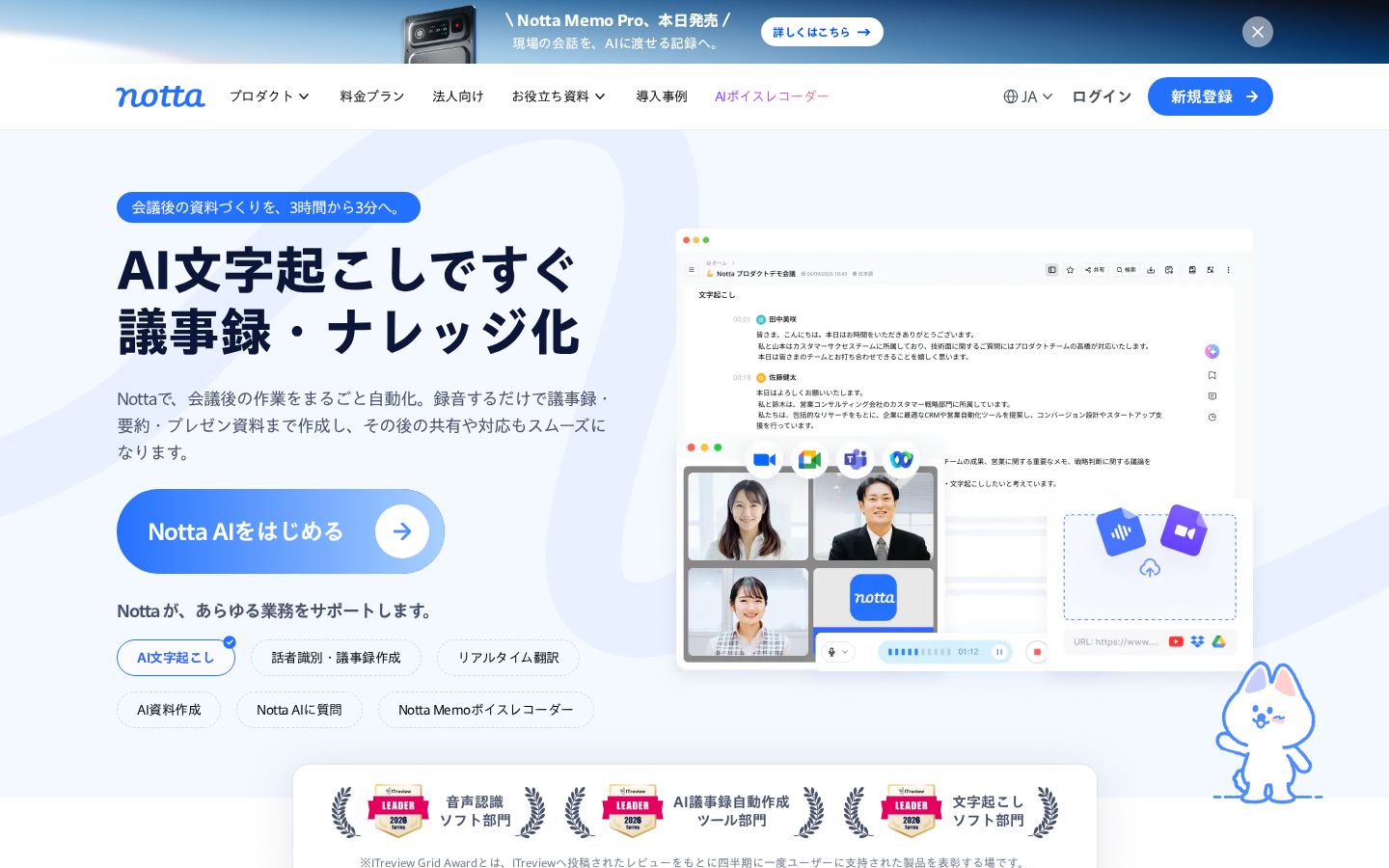
You want to focus on a meeting, but taking notes demands all your attention. Even if you record it, finding the comments you need afterward can be difficult. Notta is a service that transcribes these conversations and helps turn them into AI summaries and meeting minutes. Its official website lists a web version, apps, a desktop version, and other options. Official website
If you are considering Notta, we recommend testing the full process: reviewing the transcript, correcting errors, checking the key points, and exporting what you need. This article covers pricing and use cases, focusing on the web workflow for prerecorded files.
What Is Notta?
Notta lets you upload prerecorded audio and video files to create transcripts. According to its official help documentation, file imports are supported on the web version and mobile app and are available on all plans. Official help on file imports
You can edit the resulting text within a note and manage speaker information. AI summaries can then help organize the transcript’s content. One of its defining features is that recording audio, reading what was said, and summarizing the key points can form a single workflow. Note screen layout
The editorial team sees Notta as an option for refining a record while checking the conversation, rather than a tool that simply hands you finished meeting minutes. If you want to document what was decided, look beyond how the transcript reads and check whether it distinguishes decisions from proposals.
What You Can Do: Key Features
Turn Audio and Video into Text
The official help documentation lists support for audio formats such as MP3, WAV, and M4A, and video formats such as MP4 and MOV. Audio files are limited to 1GB or 5 hours, whichever comes first; video files are limited to 10GB or 5 hours, whichever comes first. You also need to check your plan’s usage allowance separately. Supported files and limits
Possible uses include reviewing internal meetings, preparing an article from an interview recording, and organizing your own voice notes. In each case, deciding what you ultimately want to keep makes it easier to choose how to review the transcript.
Edit While Checking What Was Said and Who Said It
Notes in the web version have areas for the transcript, audio playback, summaries, and more. You can use the playback bar to jump to a particular point. The documentation also describes playback speed controls and silence skipping. Web interface guide
You can edit speaker names and assign a different speaker to a speech block. However, you cannot change speakers while recording or transcription is in progress. Managing speakers
Meeting minutes sometimes need to show who is responsible for an action as well as what was discussed. For comments about responsibilities or deadlines, we recommend checking the speaker assignment alongside the content.
Create AI Summaries Using Templates
AI summaries are generated from the transcript. The official help documentation also recommends proofreading the transcript first and updating speaker names if you want them included in the summary. Generation requires at least 200 characters of text, and each successful generation counts toward your usage allowance. Official help on AI summaries
One workflow the editorial team suggests is to correct names and numbers after a meeting, then generate a summary. When reviewing it, check not only readability but also whether any unresolved topics have been presented as settled decisions. Polished writing and an accurate account of the meeting need to be checked separately.
Pricing Plans
Prices Shown on the Japanese Pricing Page
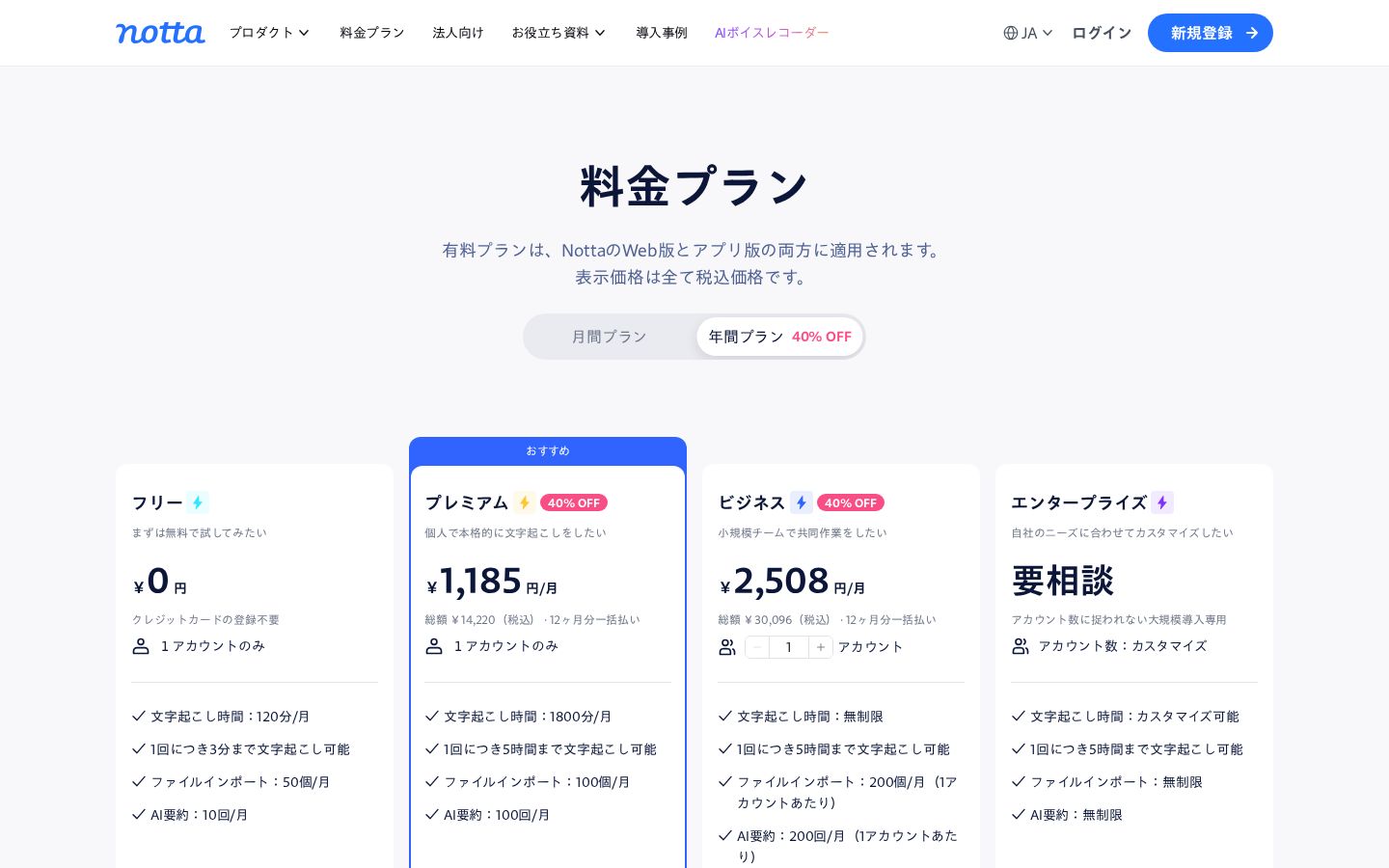
The following tax-inclusive prices were checked on November 5, 2026. Paid plan prices are monthly equivalents when paying for 12 months upfront, not the amounts charged under a monthly subscription. Official pricing page
Plan | Listed annual billing price | Transcription time | Limit per transcription |
|---|---|---|---|
Free | ¥0 | 120 minutes per month | 3 minutes |
Premium | Equivalent to ¥1,185 per month, ¥14,220 per year | 1,800 minutes per month | 5 hours |
Business | Listed as equivalent to ¥2,508 per month, ¥30,096 per year | Unlimited | 5 hours |
Enterprise | Contact for pricing | Customizable | 5 hours |
The Business pricing section lets you specify the number of accounts, so check the total for the number of people you need. The Free plan is listed as requiring no credit card.
Read the Free Allowance as Both “120 Minutes per Month” and “3 Minutes per Transcription”
When trying the free plan, be sure to distinguish the monthly time allowance from the limit for a single transcription. Although Free lists 120 minutes per month, each transcription is limited to 3 minutes. Do not mistake this for an allowance that lets you transcribe several long meetings in full. Free plan terms
Before testing the free allowance, decide what you want to evaluate. If your goal is meeting minutes, work through the process of correcting the transcript and then summarizing it. If you are preparing an interview article, check the process of refining the text while listening back to important comments. Even with the same transcription feature, what you need to evaluate changes with the final output you want.
Also, success with a short recording does not mean the tool will work equally well for every long meeting with multiple participants. Before committing to ongoing use, test it under conditions similar to your usual meetings and assess how much work the transcript needs afterward. The editorial team recommends focusing on the effort required to finish a checked record rather than the amount of text generated.
To assess usability for free, choose a short practice recording within the limits and try reviewing and correcting it. Check how the words you use are recognized and whether you can return to passages you want to hear again. Assess these points separately from whether it can accommodate the length of the meetings you intend to use it for.
Check Other Allowances and Export Options
At the time of review, the pricing page listed monthly file import allowances of 50 for Free, 100 for Premium, and 200 per account for Business. The respective AI summary allowances were 10, 100, and 200 per month. Downloading transcription data is available on Premium and above. Plan comparison
When choosing a plan, consider the number of files, the number of summaries, and whether you need downloads, alongside your monthly recording time. Someone with many short recordings may reach a different limit first than someone with a few long meetings. We recommend using your meeting calendar to estimate your actual usage.
How to Use Notta: From File Import to Your First Summary
Here, we explain how to work with a prerecorded file in the web version, following the official help documentation. Prepare one practice recording and try the process from importing it through reviewing the result.
1. Prepare a Recording and Decide What to Check
First, choose an audio file you can use. For the editorial team’s suggested practice exercise, make a short recording of yourself reading out a schedule or task details. Knowing the original content makes it easier to spot what was transcribed correctly and what needs fixing.
For practice, it helps to focus on around four categories: people’s names and other proper nouns, numbers, dates, and negative statements. Choose words that matter in your work. We recommend learning the process with one recording before adding more, rather than importing a large batch at the outset.
2. Upload the File and Select the Spoken Language
On the web version’s home screen, click “Upload,” then drag and drop a file or use “Select files.” Click “Next,” set the spoken language and speaker identification options, then click “Upload” to begin importing and transcribing. Official import instructions
If the recording contains multiple speakers, consider whether you need to distinguish who said what. Follow the sequence of waiting for processing to finish, then checking the names and content once the result is ready.
3. Check the Transcript Against the Audio and Correct It
Open the note once transcription is complete and listen back to any passages you need to check. In the web version, you can edit the content by double-clicking the transcript area or turning on “Edit transcript.” Editing instructions
The editorial team’s review order is proper nouns and numbers first, then people responsible and deadlines, and finally readability. For example, “consider it by next week” and “implement it by next week” mean different things. Even when editing the text into natural Japanese, take care not to change how strongly the original statement was expressed.
If you are unsure about a word, listen to the original audio again rather than filling it in from context alone. Avoiding convenient guesses about inaudible passages is also an important part of completing an accurate meeting record.
4. Check the Speakers and Generate a Summary from a Template
If needed, click a speaker name and select an existing speaker or add a name. Then set the AI summary language and choose a template in the note’s AI summary area. To explore other formats, you can preview them through options such as “All templates.” Speaker controls, Summary instructions
Review your first summary as if you had not attended the meeting. Check whether it includes the context behind the topics, makes the next steps clear, and avoids ambiguity about who said what. Do not judge it solely by how short it is; check whether it retains the information you need.
5. Export in the Format You Need and Perform a Final Check
On Premium and above, you can click the download icon at the top right of a note, choose a format and options, and save the file. The official help documentation lists formats including text, Word, PDF, Excel, and SRT, and states that editing and downloading permissions are required. Download instructions
The editorial team recommends reopening the saved file to check that it includes the information you need, such as speakers and elapsed time. The required output differs depending on whether you want to preserve the full meeting or read only the summary. Choose a format that suits the people who will use it.
Who Notta Is and Is Not Suited For
These are the editorial team’s views based on the features and limits reviewed.
A good fit for
- People who want to turn meeting or interview recordings into text they can review.
- People who want to correct speaker information and what was said while checking the original audio.
- People who want to extract the key points for meeting minutes from a transcript.
Not a good fit for
- People who want to transcribe a long meeting in full in a single session using only the free plan.
- People who do not want to include a review step for recognition errors or summary content.
- People who want to trim and finish the audio or video itself.
How It Differs from Similar Tools
VEED also offers audio transcription and subtitle generation, but its official pages describe a workflow of adding subtitles to a video, editing the footage, and exporting it. Notta is a service worth considering for reviewing spoken comments in text, organizing speakers, and keeping a record of a meeting’s key points. VEED’s subtitle features, Notta’s note layout
It is easier to choose by comparing the outputs you need: Notta for meeting minutes, or VEED for finishing subtitles on a video that an audience will watch. This is not a comparison of transcription accuracy or processing time using the same recording.
Things to Keep in Mind
Editing Text Does Not Edit the Audio
The official help documentation explains that editing a transcript does not automatically update audio timestamps, and that trimming audio or video is not supported. When replacing a large amount of text at once, check how it corresponds to the original speech. Editing considerations
It therefore helps to treat a full transcript and a report edited for readability as serving different purposes. When editing a record used to check what was originally said, preserve its meaning. When writing a report that conveys only the conclusions, keep track of what you have omitted.
Check What “Unlimited” Covers
The Business plan lists unlimited transcription time, but separate conditions apply to the length of each transcription, the number of imported files, and the number of summaries. A translation add-on is also listed. Check each task you need against the corresponding item in the pricing table. Pricing and add-ons
The AI summary help article contained a list showing 100 and 200 uses per month alongside different usage figures remaining further down the page. This article uses the figures on the Japanese pricing page. Successful regeneration also counts as one use, so we recommend finishing transcript corrections before generating a summary again. AI summary usage terms
Conclusion
Notta is an option for people who want to go beyond turning audio into text and continue with listening back, correcting, and summarizing. Start with one short recording and test whether you can find and correct the comments you want to check. Then choose a plan based on meeting length, file count, summary frequency, and whether you need downloads. This makes it easier to judge whether it fits your needs.
Sources (Page Content Reviewed on November 5, 2026)
- Notta’s official website: Product overview.
- Japanese pricing page: Tax-inclusive prices, annual billing terms, and usage allowances.
- Importing local files: Formats, limits, and web instructions.
- Editing transcription data: Editing methods and limitations.
- Managing speakers: Speaker assignments.
- Generating AI summaries from templates: Summary instructions and how usage is counted.
- Note details page (web version): Note and playback features.
- Downloading transcription data: Eligible plans, formats, and instructions.
- VEED Auto Subtitle Generator: Features of the comparison tool.