What Is n8n? Workflow Automation Features, Pricing, and How to Use It
n8n connects data retrieval, transformation, and conditional logic. Explore Cloud vs. self-hosting, execution-based pricing, and your first workflow.
Information checked: November 5, 2026. Features and pricing are based on the official pages read on that date. The walkthrough is a practice example created by the editorial team using official specifications; it has not been tested by running it. Check the latest pricing before subscribing.
Introduction
Copying the same information, tidying up fields, and moving it to another tool—again and again. n8n is an option when you want to connect these repetitive tasks into a sequence that runs as a workflow. Its visual workflow system lets you combine steps to connect data across tools and build processes that use AI. n8n official website
When getting started, we recommend checking what each step receives, how it changes the data, and what it outputs, rather than automating an entire business process at once. This article explains the differences between Cloud and self-hosting, how executions are counted, and a small workflow you can try manually.
What is n8n?
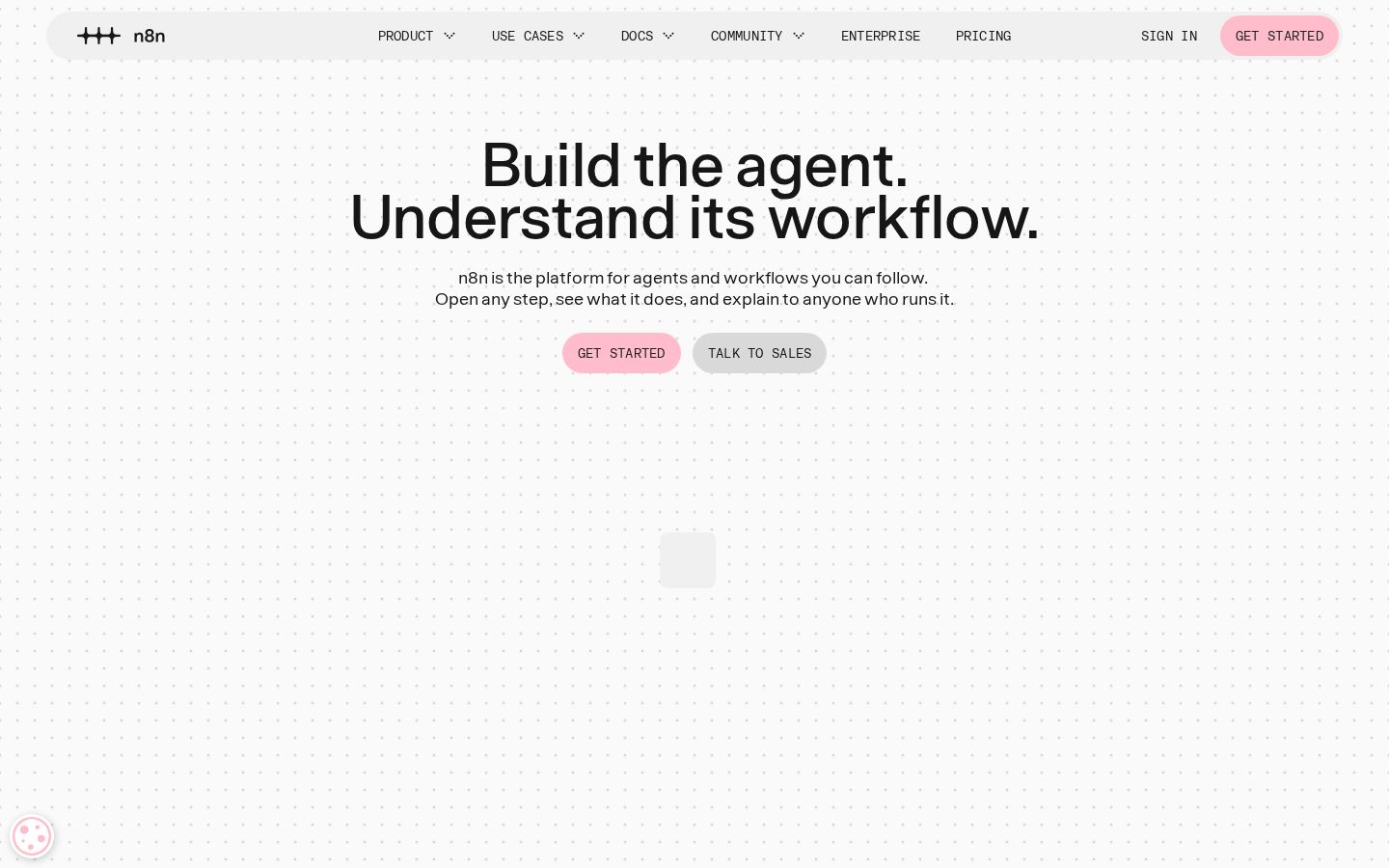
In n8n, each individual step is called a “node,” and you connect nodes to build a sequence of tasks. Nodes serve roles such as starting a process, retrieving or sending data, and transforming data. This complete sequence is a workflow. Official guide to nodes
For example, the editorial team might build a workflow that extracts the necessary fields from incoming information and sends only the items that meet certain conditions to the next step. Before connecting tools, break your everyday task down into “trigger,” “transformation,” and “result” to clarify what you want to build.
The key is to distinguish between having the lines connected on screen and having a workflow that does what your business process requires. Build it gradually, checking that the necessary fields are retained and that information that does not meet your conditions is not passed on.
What you can do: key features
Connect multiple steps visually
The official website describes creating workflows with a visual builder and using code when needed. You can open each step to inspect what it does. Workflow overview
If you are considering n8n, start by writing out one task. “Check incoming information” is too broad: specify which information you receive, which fields you examine, and what you want to keep as the result. Breaking that description into individual steps makes it easier to plan before you build.
Prepare data fields
The Edit Fields (Set) node lets you set new data or overwrite existing values. You can configure fields on screen with Manual Mapping or define the output in JSON format. Official guide to Edit Fields
This is a feature to consider when you need to prepare fields before passing them to another step. In the editorial team’s example, that might mean using only the article title and publication status from the source data. Deciding which information you need and which you do not helps you check what should reach the next step.
Route data based on conditions
The If node lets you split a workflow based on comparison conditions. It supports comparisons involving strings, numbers, dates, and more. You can choose AND, which requires all conditions to be met, or OR, which requires any one of them to be met. Official guide to If
When defining conditions, consider both the data you want to let through and the data you want to hold back. For example, if only verified information should proceed, decide how to handle unverified information, blank fields, and unexpected values. Before using the workflow for real work, prepare sample inputs that let you test those differences.
Connect to services through APIs
The HTTP Request node can send requests to services with a REST API. The official documentation explains that you need to understand basic API terminology and concepts. Configure the URL, authentication, fields to send, and other settings according to the destination service’s specifications. Official guide to HTTP Request
Expect some parts to be handled entirely through the built-in interface, while others require reading the destination service’s specifications. Finding the name of a service you want to use does not necessarily mean the operation you need is supported. Decide whether you want to retrieve, add, or update data, then check.
Use AI as one step in a business process
The official website describes a system that combines AI agents, structured inputs and outputs, and human approval. A key feature is the ability to build not just an AI step on its own, but also the steps before and after it, including review stages. Workflows that include AI
The editorial team recommends first deciding which decisions you will delegate to AI. Generating a draft and sending that text require different checks. Consider where a person will read the result as part of your workflow design.
Pricing plans
Consider Cloud and self-hosting separately
With n8n Cloud, n8n manages the underlying infrastructure. With self-hosting, you run n8n in your own environment and handle its configuration and administration. The official guidance points people who want to start without installing anything or managing infrastructure toward Cloud, and those who want to manage their own environment toward self-hosting. Choosing how to use n8n
Self-hosting includes a free Community edition, with the option to add a Business or Enterprise license. However, consider the free software separately from the cost of the environment it runs in and the work required to manage it. Official guide to self-hosting
Annual billing prices and execution allowances
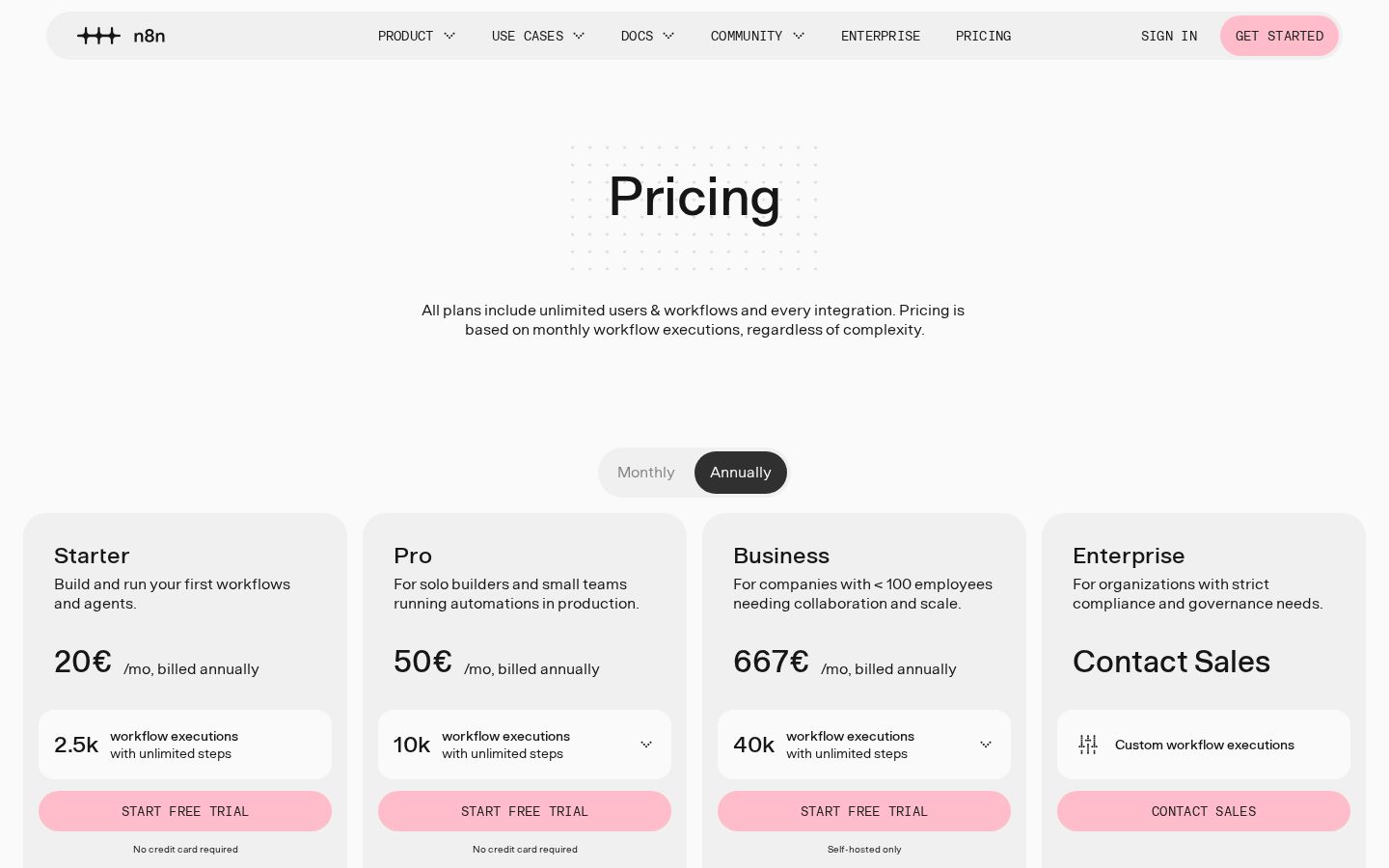
The following figures were displayed on the pricing page checked on November 5, 2026. Prices are in euros and represent the monthly equivalent when billed annually. Do not treat them as monthly billing prices or amounts converted to yen. Official pricing page
Plan | Displayed monthly price when billed annually | Monthly executions | Hosting option |
|---|---|---|---|
Starter | 20 euros | 2,500 executions | Hosted by n8n |
Pro | 50 euros | 10,000 executions | Hosted by n8n |
Business | 667 euros | 40,000 executions | Self-hosted |
Enterprise | Contact for pricing | Custom | Cloud or self-hosted |
The pricing page explains that pricing is based on workflow executions, with unlimited steps. However, plans differ in areas such as concurrent executions and shared projects. Alongside the number of users, check how often your workflows will run and how you will manage them together.
Execution count is not the same as node count
The official documentation defines an execution as one run of a workflow. It explains that runs initiated by automatic triggers, schedules, and similar mechanisms count toward paid plan allowances, while manual runs from the editor do not. How executions are counted
As a simple estimate from the editorial team, a workflow that runs once a day for 30 days would have 30 executions. Running once an hour for 30 days would produce 720 executions. These calculations illustrate frequency; they are not billing estimates that apply unchanged to every setup.
Counting also depends on how a workflow starts: scheduled workflows count each time they run, while polling counts when new data is found. Decide what will trigger your workflow, then check the counting rules that apply. How different triggers are counted
Getting started: your first small workflow
This first practice example starts manually, creates values such as an article title, and lets you inspect the output. It combines the official specifications for Manual Trigger and Edit Fields, without sending anything to external services or writing to a database.
1. Choose your environment
Choose Cloud or self-hosting and prepare an n8n environment you can use. If you are exploring the interface for the first time, the Cloud free trial described in the official guidance is an option. If you choose self-hosting, consider both the installation method and how you will manage it. Guide to using n8n
This exercise focuses on adding nodes and reading their data output. Aim to understand the relationship between input and output before connecting more services.
2. Add a manual starting point
In an empty workflow, choose a starting node through “Add first step.” Manual Trigger is a node that starts the workflow when you select “Execute Workflow.” It is described as a way to test without using automatic execution. Adding nodes, Manual Trigger
Choosing the starting point makes it clear when the workflow will run. At this stage, leave out schedules and external events, and set it up so you can inspect the result one manual run at a time.
3. Connect Edit Fields and set practice values
Next, add Edit Fields and connect it to the starting node. One example is to use Manual Mapping to set string fields like the following. When using fixed values, check the difference between Fixed and Expression in the input field. Configuring Edit Fields
Example field name | Type | Example fixed value |
|---|---|---|
title | String | My First Automation |
status | String | draft |
These are fictional practice data prepared by the editorial team. There is no need to use your own customer information or production data. Thinking of the field name as “what the information represents” and the value as “the actual content” makes the results on screen easier to read.
4. Run manually and inspect the output
Run the workflow with “Execute Workflow” and inspect the node’s output. The official documentation describes using manual execution to test while observing the flow of steps and the transformation of data. Manual execution explained
The expected result of this exercise is that the title and status you configured appear in the output. Check that they are strings and that the field names are correct. Then change one fixed value and run the workflow again to see whether the output changes too. This helps you understand how the settings relate to the result.
5. Once you are comfortable, add one condition
For the next exercise, you could use an If node to check whether status equals draft. Use the status value from the preceding node as the value to compare, and configure a string equality condition. If comparison conditions
Try both draft and a different value. Again, leave out any steps that send data externally, and observe which branch the data follows. Writing down the expected result first and comparing it with the actual output is a useful way to practice.
Who n8n is and is not suited to
The following is the editorial team’s assessment based on the official features and usage guidance.
A good fit for
- People who can break repetitive work down into triggers and a sequence of steps.
- People who want to prepare and connect data across multiple services.
- People who want to review execution results and adjust settings as they use the system.
Not a good fit for
- People who want to hand over an entire task without considering its steps or exceptions.
- People who want automated operation without assigning anyone to check the results.
- People who choose self-hosting solely because it is free, without preparing to manage the environment.
How it differs from similar tools
Make is also an automation service that connects multiple apps, but its official pricing explanation states that each action in a scenario consumes credits. n8n bases its pricing on workflow executions, so the way you estimate costs for a single run differs between the two. Make pricing explained, n8n pricing explained
Compare which is cheaper after defining the number of steps you need and how often they will run. With n8n, Cloud versus self-hosting is another decision. We recommend considering who will handle administration as well as the displayed monthly price.
Things to keep in mind
Distinguish saving from enabling automatic execution
The current official documentation explains that edits are saved automatically and that automatic executions use the published version. Publishing a workflow with an automatic trigger enables it to run according to the configured schedule or events. Saving and publishing explained
When moving from a practice setup to real work, review what triggers the workflow. Before closing the screen because you think it is finished, check whether it is ready to run automatically.
Manual tests still execute the connected steps
Manual execution runs the actual steps so you can inspect their results. Even a partial execution may run preceding steps to prepare the selected node’s input. Types of executions
For this reason, the editorial team recommends starting with fictional data and internal data transformations only. When you add steps that create or update data externally, check the destination and the affected data, and consider what will happen if you run the same process again.
Document the process for those who build it and those who keep using it
Before putting a workflow into operation, we recommend briefly documenting what goes in and what result you expect. Aim to make it clear to someone other than the person who configured it when it runs and where to stop it. Defining which parts are automated and which require human review also makes it easier to decide on improvements.
Conclusion
n8n is an option for automating processes that receive data, prepare it, and connect steps according to conditions. Start with manual execution and small data transformations to understand the relationship between input and output. Deciding between Cloud and self-hosting, estimating monthly executions, and identifying who will manage the system will help you make a more concrete decision about adopting it.
Sources (page content checked on November 5, 2026)
- n8n official website: Visual building, AI, and human review.
- Pricing page: Annual billing prices, execution allowances, and hosting options.
- Choose how to use n8n: Cloud and self-hosting.
- Host n8n: Community edition and environment management.
- Work with nodes: Node roles and how to add them.
- Manual Trigger: Starting manually.
- Edit Fields: Field configuration and fixed values.
- If: Conditions and branching.
- HTTP Request: API and authentication settings.
- Understand executions: How executions count toward allowances.
- Types of executions: Manual, partial, and automatic executions.
- Save and publish workflows: Saving and publishing.
- Make Pricing: Billing units for the comparison tool.