What Is Lovable? AI Web App Features, Pricing, and How to Use It
Explore Lovable’s conversational web app builder, previews, publishing, and credit system, with a guide to starting small and testing a prototype.
Information checked: November 5, 2026. This article is based on a review of the official pages. We did not create an app, connect external services, purchase a subscription, or publish anything. Prices are in US dollars.
Introduction
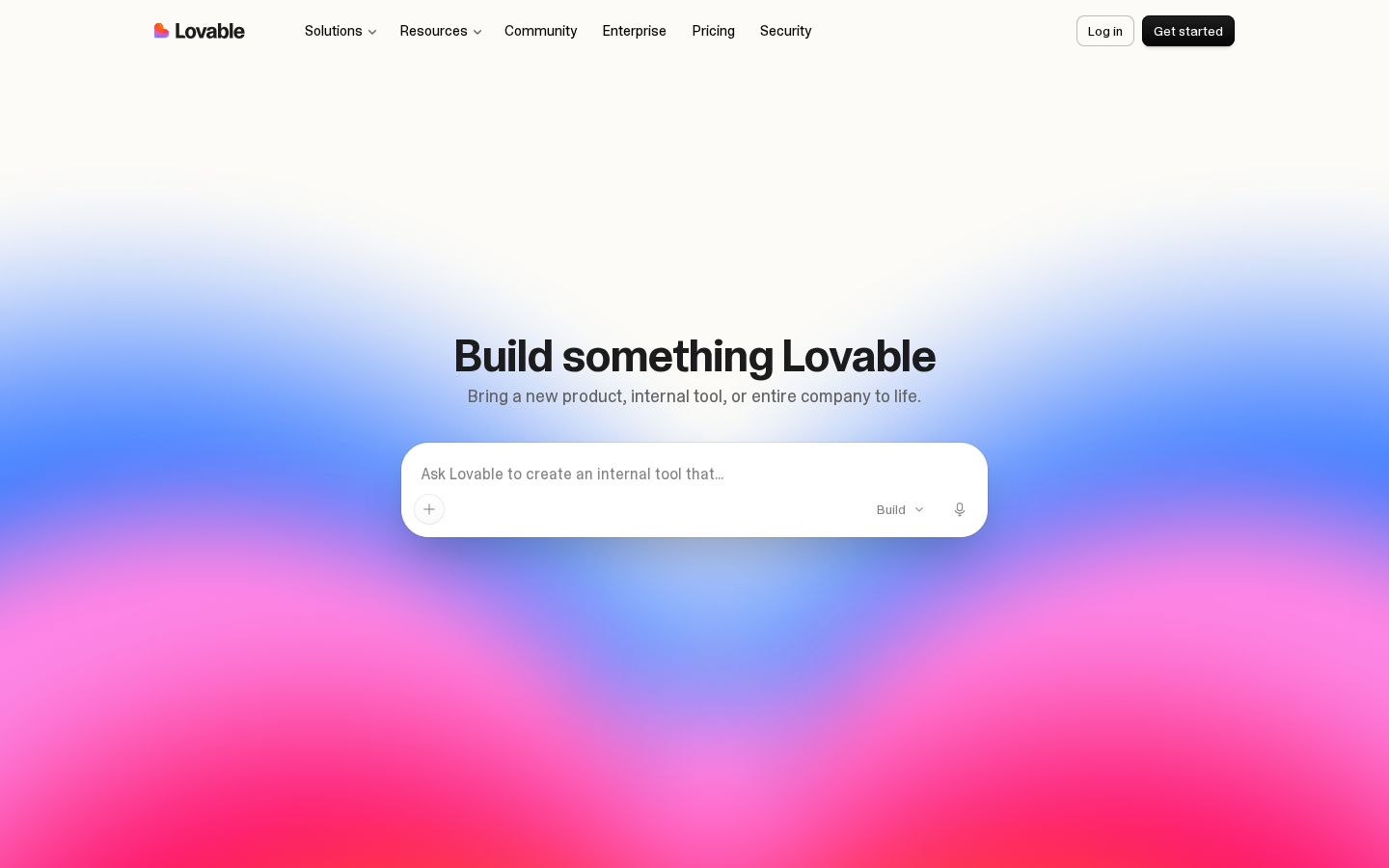
You have an idea for a web service, but getting the first screen ready has brought you to a halt. Lovable is a service for building websites and web apps by describing what you want in everyday language. Its official guidance walks through previewing generated screens, refining them through conversation, and moving on to publishing. Lovable official website
However, seeing a screen appear does not tell you whether people can use it without confusion or whether the necessary functions work. This article uses a fictional product list to explain an approach to building and checking a small prototype. Start by focusing on whether it can accomplish one goal, rather than how many features it has.
What Is Lovable?
Lovable is a creation service that builds screens and features from a description of what you want to make, then lets you refine them by moving between chat and preview. Its official getting started guide explains how to start from scratch or use Remix to create an independent copy of a template. Getting started guide
The editorial team recommends describing your first project in terms of who will use it, what they will look at, and what actions they will take. For an equipment list, for example, people might search by name, filter by category, or read an item’s details.
The example here is a prototype that displays fictional names and descriptions. It does not demonstrate an implementation of inventory management or reservation handling. Treat changes to what appears on screen and the saving and sharing of information with other people as separate things to check.
Trying to describe the finished product all at once can blur the distinction between essential features and those you can add later. Defining the minimum set of actions first, then expanding the scope after seeing how they work, also makes it easier to explain why a change is needed.
What You Can Do: Key Features
Build a Prototype Through Conversation
The official guide explains how to describe pages and behavior in everyday language, then review what is generated. It also covers requesting changes one at a time after the initial generation and reverting to earlier versions. Getting started with building
The editorial team’s example prompt is: “A page listing fictional equipment available to borrow. Show each item’s name, category, and description, and let users search by name.” Start with sample content and plan the prototype so it does not require real personal or customer information.
Describing what should happen when someone searches, as well as colors and rounded corners, makes it clearer what you need to check. Conditions such as “Show a message when there are no search results” also help you assess usability.
Separate Planning Discussions from Implementation
Lovable offers Plan mode, which lets you discuss ideas without changing the code. Its credit documentation states that, in addition to the base credit cost of a message, work performed by research subagents in Plan mode may consume additional credits. Credits and usage
The editorial team recommends using it to clarify questions such as “Can the current setup support this?” and “Which screens would this affect?” before adding a feature. Reading through the discussion and confirming the necessary scope before making changes makes it easier to trace the reasons for later revisions.
A displayed plan does not mean a feature is complete. Recording what has been proposed, what has been implemented on screen, and what has been checked through actual use as separate stages makes it easier to share progress with collaborators.
Check Screens and Behavior in Preview
The preview displays your latest work and lets you switch between desktop, tablet, and mobile views. A published site reflects its content at the time of publication; subsequent edits do not automatically appear there until you publish again. Preview
One point to keep in mind is the official explanation that the preview and published site use the same backend and data. Even though screen updates are published separately, changes to the underlying data are not necessarily isolated.
The editorial team recommends checking appearance and interactions separately. Alongside checking whether text is readable and buttons are usable, try a complete sequence of actions: does clearing a search restore the list, and can you close an item’s details and continue browsing?
Choose How to Publish and Work with the Code
The official plan comparison lists syncing with GitHub and other services. Paid plans include features such as code editing and downloads, custom domains, and removal of the Lovable badge. Plan comparison
Being able to export the code does not eliminate the need for ongoing maintenance or revisions. The editorial team recommends also considering who will maintain it, where to look when something goes wrong, and which services it depends on.
Before publishing, check who will have access, what will be displayed, and which services are connected. Showing someone a work-in-progress prototype and making it available for the general public to use call for different levels of checking.
Pricing Plans
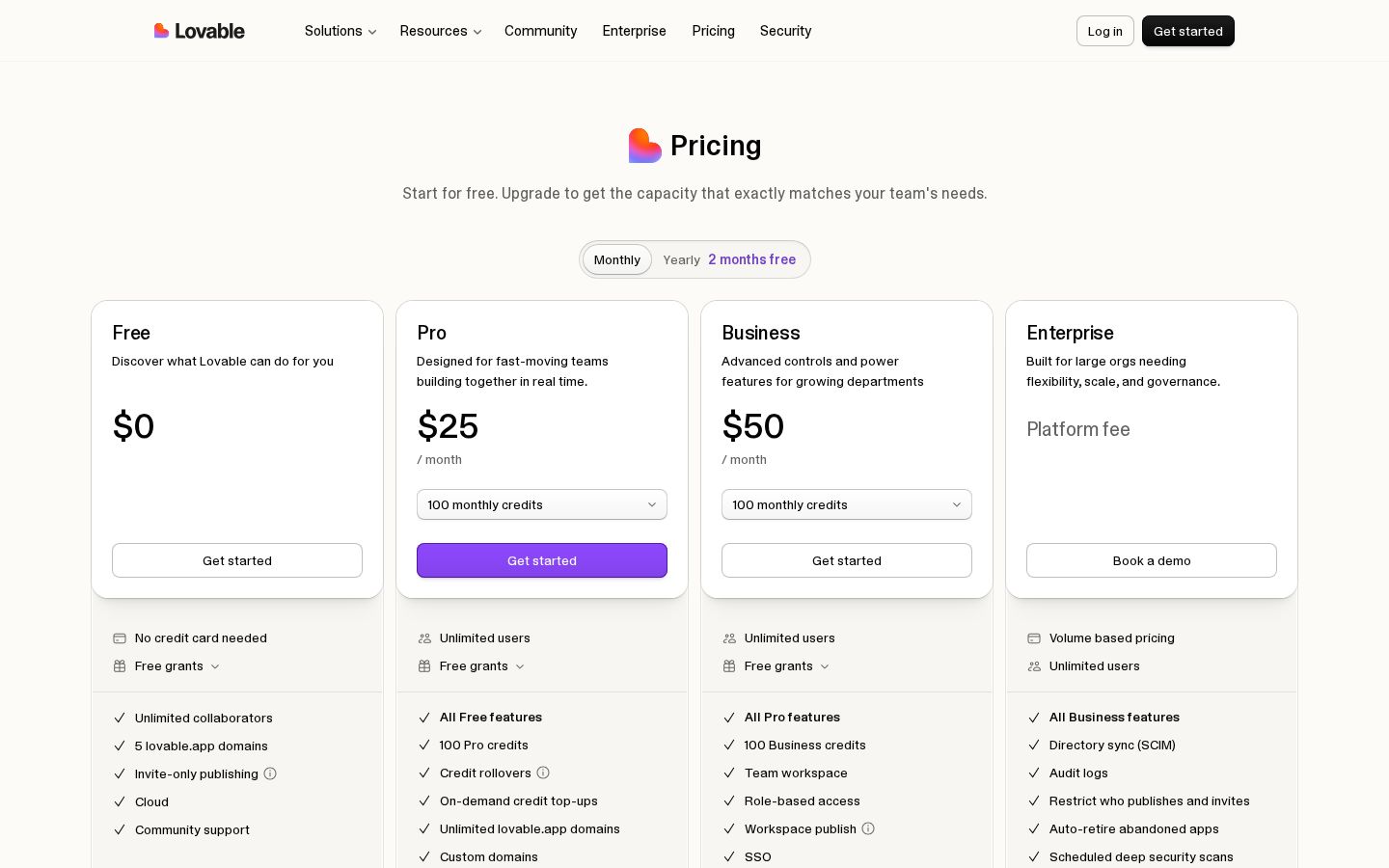
The official plan documentation lists Free, Pro, Business, and Enterprise. The table below shows the starting configurations for monthly billing. Paid plans also offer options to increase monthly credits. Official plan documentation
Plan | Price with monthly billing | Key allowances and features reviewed |
|---|---|---|
Free | $0 | 5 credits per day, up to 30 in total per month |
Pro | From $25 per month | From 100 monthly credits, custom domains, and more |
Business | From $50 per month | From 100 monthly credits, organizational management features, and more |
Enterprise | Custom terms | Additional organizational controls and contract terms |
For annual billing, the 100-credit configuration is listed at $250 per year for Pro and $500 per year for Business. Monthly credits are still allocated each month on an annual plan, so do not assume you can use the entire year’s credits upfront.
Credits are relevant both to the work involved in building an app and to running services such as Cloud and in-app AI. The official documentation explains that allowances for specific uses are consumed first, with a shared balance used as needed. Usage explained
Some monthly Cloud and AI allowances are temporary and subject to change. Avoid basing long-term operating costs solely on free allowances, and check both the usage incurred during development and the usage incurred when people use the app.
The editorial team recommends against estimating costs solely from the number of messages in a session. Consumption varies depending on the work performed, so recording actual usage across several small changes makes comparisons easier.
The pricing page also lists exceptions to daily allowances based on region or plan. When subscribing, compare the terms on the official page with those shown in your own account, and check renewal dates, allocation dates, and expiration dates. Official pricing
How to Use Lovable: Planning a Small List App
The following approach is based on the official guides and includes examples of checks suggested by the editorial team. It is not a report of hands-on results from an app created or published for this article.
1. Define the User and Their First Action
First, write down the goal: “Someone looking for equipment can find suitable items by name or type.” Limiting the scope to a list, search, and details makes it easier to explain what needs to be checked.
Adding reservations, approvals, notifications, and billing all at once makes it harder to identify which feature is causing a problem. Choose only what is essential to achieving the initial goal.
2. Describe the Sample Content and Screens
Following the official guide, describe the screens and behavior you need in writing. In the editorial team’s example, this means preparing a few fictional equipment names with short descriptions and planning a list whose items can be distinguished even without photos.
A single item will not let you check long names, entries without descriptions, or multiple items in the same category. Include a little content that might disrupt the layout so you can examine several situations from the start.
3. Interact with the Generated Screens
Check the display in preview, then try search text that matches, text that does not match, and an empty input. Even if the design looks polished, there is room for improvement if users cannot tell what their actions have done.
In the mobile view, also check the order of items, button placement, and the readability of details. When information that was side by side becomes stacked vertically, check whether it is still clear which description belongs to which name.
4. Request One Change at a Time
When requesting a revision, go beyond “Make it easier to use” and describe the situation that causes difficulty. For example: “When there are no results, the list simply disappears, so display a message suggesting that the user change the search criteria.”
After a change, check the affected area and related interactions again. Look at connected actions too—for example, whether a change to the search field has made it impossible to return to the list. Keeping a consolidated record of concerns can help you avoid repeating the same revisions.
5. Separate Publishing Preparation from Post-Publication Checks
The official guide explains how to open Publish, check the URL and access settings, and publish. Later changes are also applied to the live site through the publishing process. Publishing steps
When you are ready to publish, first check the title, description, any unwanted sample content, and link destinations. After publishing, open the live URL and test the experience from the user’s entry point, rather than assuming it matches the editor preview.
When recording results, it helps to note the input and expected outcome, rather than just “works” or “doesn’t work.” For example, “Search using part of an equipment name, and only the two matching items appear” gives you the same conditions to check after the next revision.
When asking stakeholders to review a prototype, you can give them a specific task as well as inviting general feedback. A task such as “Choose one item of equipment suited to this purpose” lets you ask exactly where they became unsure. This is a prototype evaluation method recommended by the editorial team, not a Lovable feature. Seeing whether people can reach the goal without additional explanation from the creator makes it easier to decide what to change next.
Who It Is—and Is Not—Suited To
Who It Suits
In the editorial team’s view, Lovable suits people who want to turn an idea into screens and discuss how it will be used with stakeholders. It is an option to consider for exploring search and list interactions on a small scale when those behaviors are hard to picture from text alone.
It may also suit people who can revise requirements while looking at actual screens. Planning for repeated checks and revisions fits the workflow better than expecting the first prompt to produce a finished result.
Who It May Not Suit
It is harder to recommend to anyone who wants to treat permissions, data storage, and operations as verified as soon as a screen appears. Services where it matters who can enter or view information require checks beyond the interface.
We also suggest taking your time before adopting it if you cannot set aside time to review generated changes and usage. Start with a limited project and try the full creation process, including the checks.
How It Compares with Similar Tools
Framer also offers AI-assisted website creation. Its official introductory lessons cover building sites, including canvas editing and a CMS. Framer introductory lessons
The editorial team believes giving both tools the same small task makes comparison easier. Adjust what you check depending on whether your priority is the content you present and how easily it can be updated, or a prototype with interactions such as search.
Area to compare | What to check |
|---|---|
Revisions during development | Can you change the part you intended to change? |
User interactions | Can users complete a sequence of actions without confusion? |
Updates and operations | Who will revise the content and features? |
Costs | Can you account for both development and usage after publishing? |
Avoid deciding which tool is better based on the use case alone. Compare them using the same required actions and checking methods for your own project.
Points to Keep in Mind
Check whether AI-generated text and numbers are factual and appropriate to publish. Do not use fictional achievements, testimonials, or prices as information about a real service without verifying them.
When data is shared between the preview and the published site, consider the effects of interface changes separately from changes to the underlying data. When working on a live service, make sure you understand how far a change will reach before proceeding.
If you add an external service, you also need to check that service’s pricing and permissions. Do not assume Lovable’s base price includes all external service costs.
Conclusion
Lovable is an option for building on the web by describing what you want, reviewing the generated screens, and refining them through use. Starting with a small list or search feature makes it easier to identify the features you need and the behavior you should check.
When reviewing pricing, check how credits are allocated and consumed, both during development and while the app is running. Looking beyond a prototype’s appearance to verify access settings and actual interactions is a starting point for deciding whether it fits your needs.
Sources
All official source pages were reviewed on November 5, 2026.