What Is Grammarly? How to Use It, Pro Pricing, and Japanese Language Support
Explore Grammarly’s grammar checks, rewrites, and tone adjustments, plus Free and Pro pricing, Japanese language support, and steps for reviewing English emails.
Information checked: November 5, 2026. This article is based on a review of the text on official pages. We did not create an account, test corrections, purchase a subscription, or send emails. Prices are in US dollars.
Introduction
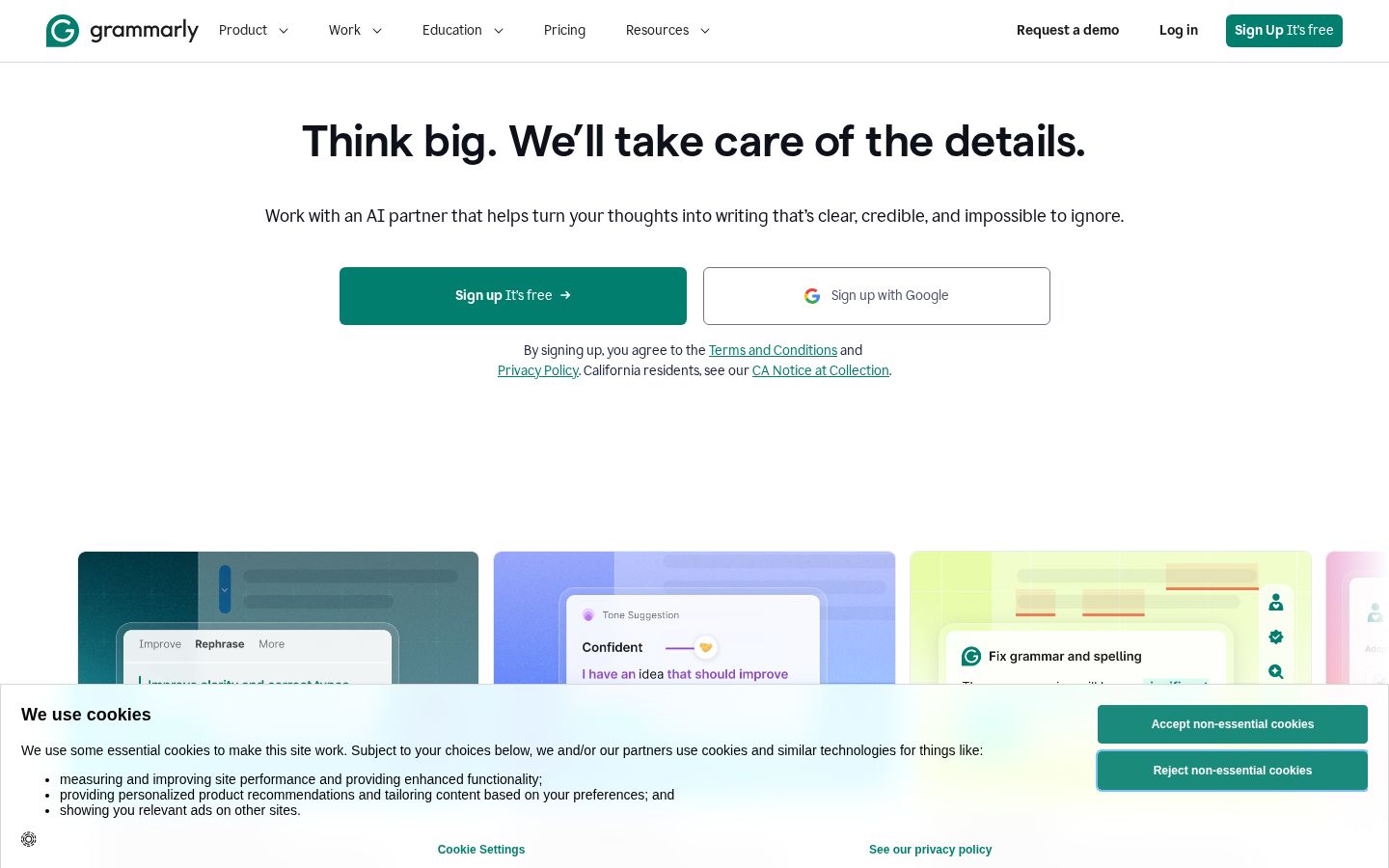
You’ve written an email in English, but you’re unsure about the grammar or how strongly your words might come across. Grammarly is a writing assistant that helps you check for errors, assess how your writing comes across, and refine your wording. Its official website describes features including proofreading, paraphrasing, and tone adjustments. Grammarly’s official website
The key is to decide whether a suggestion matches what you want to say, rather than accepting it automatically. Using an English email as an example, this article covers Grammarly’s features, pricing, supported languages, and steps for reviewing your writing.
What Is Grammarly?
Grammarly helps with clarity and readability as well as grammar, spelling, and punctuation. Its official grammar checker page distinguishes between identifying basic errors and suggesting improvements to wording. Grammar checker features
Ways to use Grammarly include a browser-based editor, browser extensions, and apps for Windows and Mac. The official getting started guide also explains how to edit text in your browser without installing an app. Getting started guide
Our editorial team recommends starting with one short piece of writing to see which suggestions you need. The features to focus on will depend on whether you want to check grammar, shorten long sentences, or make a request more politely.
For a scheduling email, for example, natural English is only part of the task. The proposed dates, time slots, and information you want in the reply also need to be clear. Work on refining the wording and making sure all the necessary information is there.
What It Can Do: Key Features
Help Check Grammar and Spelling
The official grammar checker page describes suggestions for grammatical errors, spelling, and punctuation. It shows how to check your English both after writing and as you type. Grammar checker features
Our editorial team recommends reading the explanations for corrections, too. If the same kinds of issues keep appearing, they can help you identify areas you find tricky, such as articles, singular and plural forms, or verb tenses.
Reducing the number of flagged issues should not be your only goal, though. Some wording should stay as it is, such as official internal names or terms agreed upon with the recipient. Check against dictionaries and source materials when deciding what to change.
Rewrite Sentences and Adjust Tone
Grammarly Pro includes full-sentence rewrites and tone adjustments. The official page describes these as features for tailoring your wording to your audience and the situation. Grammarly Pro
Our editorial team recommends treating brevity and politeness as separate goals. Removing information may make a message look more concise, but it will not serve its purpose if deadlines or conditions attached to a request disappear.
When making a request, keep what you want the recipient to do, when you need it done, and what they should do if they cannot accommodate it. Compare the original and revised versions, checking not just the impression the wording creates but also whether the strength of the request or the scope of any commitments has changed.
Suggest Drafts and Revisions
The official generative AI guide describes uses such as planning an outline, composing text, rewriting, and suggesting replies. Where you enter instructions and how you access the feature depend on the app or interface you use. Generative AI features explained
Our editorial team recommends first organizing the facts you need to communicate, then asking for suggestions within those boundaries. Along with a request such as “Make this email polite,” specify the recipient, purpose, and information that must stay. This gives you criteria for deciding what to use.
Check any explanations added to the draft against your original information. Do not present unverified details about achievements, dates, prices, or what you can provide as your own statements.
Keep Team Wording Consistent
Alongside individual use, the Pro overview describes team features such as style guides, brand tones, and reusable text snippets. Pro is described as supporting subscriptions of up to 149 seats. Pro overview
Our editorial team recommends choosing a small set of wording conventions to standardize before using Grammarly across a team. Start with areas where judgments tend to differ, such as how product names are written, frequently used messages, and phrases to avoid.
Even with features for consistent writing, you still need to decide separately what commitments the company can make. Giving team members someone to consult when they are unsure can also help distinguish wording changes from approval of the content itself.
Check Supported Languages, Including Japanese
At the time of review, the official help page lists Japanese among the languages supported for suggestions. It also states that multilingual suggestions are included across plans, including Free. Supported languages other than English
However, Japanese does not appear in the basic support list on the language overview page, although it is listed as a language supported for translation. Because the lists differ between official pages, this article does not assume that every feature available in English is also available in Japanese. Features by language
In particular, suggestions for errors, full-text rewrites, and translation are separate features. If you mainly work in Japanese, check whether the operations you need are available in the interface you use before making a decision.
Pricing Plans
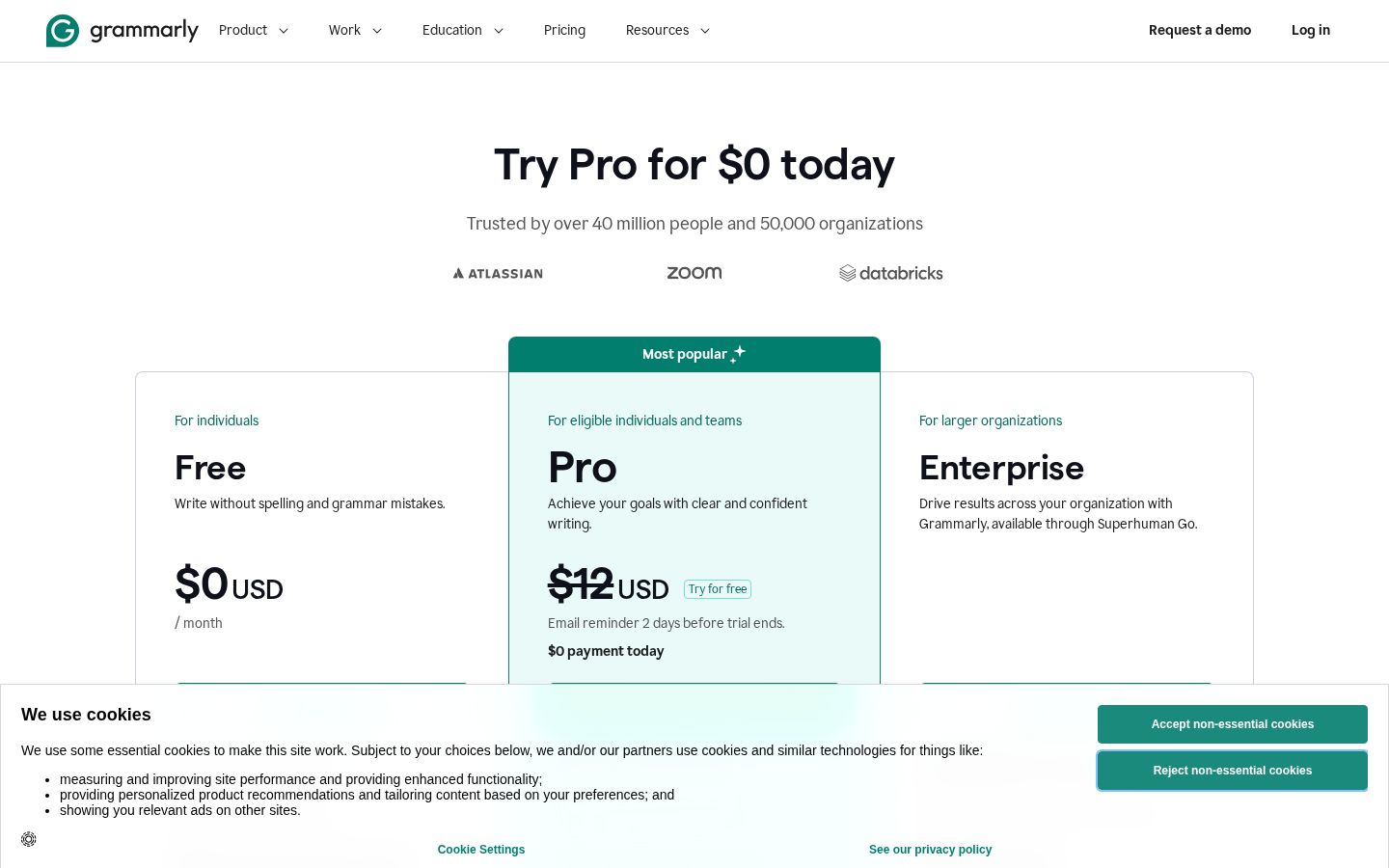
The official pricing page lists Free, Pro, and Enterprise. Pro’s billing cycles and prices were checked against the official help page. Official pricing page Pro pricing details
Plan and billing cycle | Listed price per person | Key details |
|---|---|---|
Free | $0 | Basic writing checks; 100 generative AI prompts per month |
Pro, billed monthly | $30/month | Sentence rewrites, tone adjustments, and 2,000 generative AI prompts per month |
Pro, billed every 3 months | $60/3 months | Subscription price for 3 months |
Pro, billed annually | $144/year | Equivalent to $12/month |
Enterprise | Contact for pricing | Administrative and security features for organizations, among other features |
The annual plan’s “equivalent to $12/month” does not mean you pay just $12 each month. Adding members also adds costs for each person. Check the amount shown when subscribing for the actual charge, including taxes and any local currency pricing.
The generative AI allowances for Free and Pro do not represent the number of completed emails or documents. Our editorial team recommends considering how many prompts you use from drafting through revision, alongside how often you expect to use the tool.
The free plan and a free trial of a paid plan are also different. The official help page explains that trials are offered from time to time. Rather than assuming a trial of the same length is always available, check the eligibility conditions and the price after the trial shown in the offer. Free trial information
How to Use Grammarly: Review an English Email
The following review process is based on the official Grammarly Editor guide. The generative AI help pages cover the classic Editor and the new Docs separately, so the steps here use the classic Editor as an example. If your screen or button names differ, refer to the guide for that interface.
1. Prepare Your Message and the Text to Review
Our editorial example is a short email in English asking about possible meeting dates. First, list what you want the recipient to do, the proposed dates and times, time slots, and reply deadline. Then prepare a draft containing that information.
For an initial check, you can use a fictional passage with no real names or unpublished information. When working with company text, check what information you are allowed to enter against your organization’s usage rules.
2. Open a Document in Editor
According to the official guide, you can edit text in the browser-based Grammarly Editor by selecting New document or uploading a file. The guide also explains how to paste text into a new document. Editor user guide
Our editorial team recommends starting with a short passage to learn how to read the suggestions. Beginning with text whose meaning is easy to compare before and after changes, rather than uploading a long document all at once, makes it easier to define what you need to review.
3. Consider Your Audience and Writing Style
Editor includes Goals settings. The official explanation describes tailoring suggestions based on factors such as the intended audience and how formal the writing should be. Goals explained
In our editorial example, distinguish between a business contact you are approaching for the first time and a colleague you speak with regularly. Prioritize a style that fits your relationship with the recipient and the purpose of the email over simply making it more polite.
English also has spelling conventions that differ between varieties such as American and British English. The official help page explains how to select an English variety, so check any company or publication standards first. Language settings explained
4. Read and Assess Each Suggestion
In Editor, suggestion cards appear for underlined text. Use Accept to apply a suggestion, Dismiss to skip it, and Learn more to read an explanation. Editor user guide
Our editorial team recommends first checking errors that can be corrected without changing the meaning, then reviewing wording suggestions. If you do not understand why a suggestion was made, compare the original sentence with the explanation rather than accepting it just to clear the flag.
Also check whether a change alters the subject or tense of a sentence, or makes a request sound like a settled decision. Even if the result reads naturally, you need to reject it if it no longer says what you intend.
5. Try Rewrites Only Where Needed
Consider revisions specifically for passages that feel long or requests that might sound too forceful. One approach is to give the generative AI separate instructions for goals such as shortening the text, making it more polite, or retaining specified information. Generative AI features explained
“Make the request more polite without changing the proposed dates” is an example instruction devised by our editorial team, not an example of actual output. When reviewing the result, first check the information you want left unchanged, such as the proposed dates, time zone, and where replies should be sent.
6. Do a Final Check in the App You Will Send From
You can copy the edited text or download it as a document. The official guide also explains that formatting may change when copying. Editor user guide
Our editorial team recommends checking the subject line, recipients, attachments, and line breaks after returning the text to your email composer. Treating a polished email body and an email that is ready to send as separate stages helps you check for omissions beyond the writing itself.
Who It May and May Not Suit
Our editorial team considers Grammarly an option for people who regularly write emails or documents in English and want to read and assess wording suggestions. It is easier to evaluate when you have specific improvements in mind, such as shortening your writing or adjusting how a request comes across.
If you want it to handle fact-checking as well, or send text automatically without reading it, you will need to reconsider the role you expect it to play. The writer needs to check names, amounts, delivery dates, and commitments against the original information.
If you want advanced rewriting features for Japanese-only work, do not assume that descriptions of English features apply directly. Check the combination of supported language, desired feature, and interface before choosing.
How It Compares with Similar Tools
DeepL Write, another option to compare, also describes spelling and grammar assistance, word and sentence rephrasing, and style and tone adjustments. Since both serve the purpose of refining English writing, comparing the revision process as well as how the output reads can help you decide. DeepL Write’s official website
Our editorial team recommends using the same short passage to assess whether you can understand the reasons for changes, whether the original meaning is preserved, and how convenient the tool is where you normally write. We do not rank either tool as consistently producing more natural writing.
When considering Grammarly, factors include reviewing text through suggestion cards and standardizing wording across a team. Match the features you need against the pricing, and start your comparison with the task of revising one piece of writing.
Things to Keep in Mind
Fluent revised text does not necessarily mean the underlying information is correct. Our editorial team recommends keeping a separate step for checking proper names, figures, conditions, and sources alongside the writing review.
If you use Grammarly in a team or at school, check the rules governing available features and AI use. Exercising your own judgment to refine text and deciding how much assistance is permitted in work you submit are questions to consider for each use case.
Being able to explain why you left something unchanged also matters, rather than accepting every suggestion. If you have agreed on wording with the recipient or have defined technical terms, prioritize those to preserve the meaning of the text as a whole.
Summary
Grammarly supports writing review through grammar and spelling checks, rewrites, and tone adjustments. For English emails, you can evaluate how it fits your work by organizing the content, reading suggestions, and comparing the meaning before and after changes.
Check the free allowance, Pro’s billing cycles, and supported languages separately. You can start by choosing one short piece of writing and seeing whether you can identify the revisions you need.
Sources
The text of all pages was reviewed on November 5, 2026.