What Is Gamma? A Simple Guide to Its AI Presentation Features, Pricing, and How to Use It
Turn notes or existing materials into clear, well-designed presentations. Learn how to create with Gamma, use its free allowance, export to PowerPoint, and finish your first presentation.
Information checked on November 5, 2026. Product features and terms of use were checked against the text on the official pages. Paid plan prices are not listed because they could not be verified in the pricing page text retrieved. No hands-on testing was conducted.
Introduction
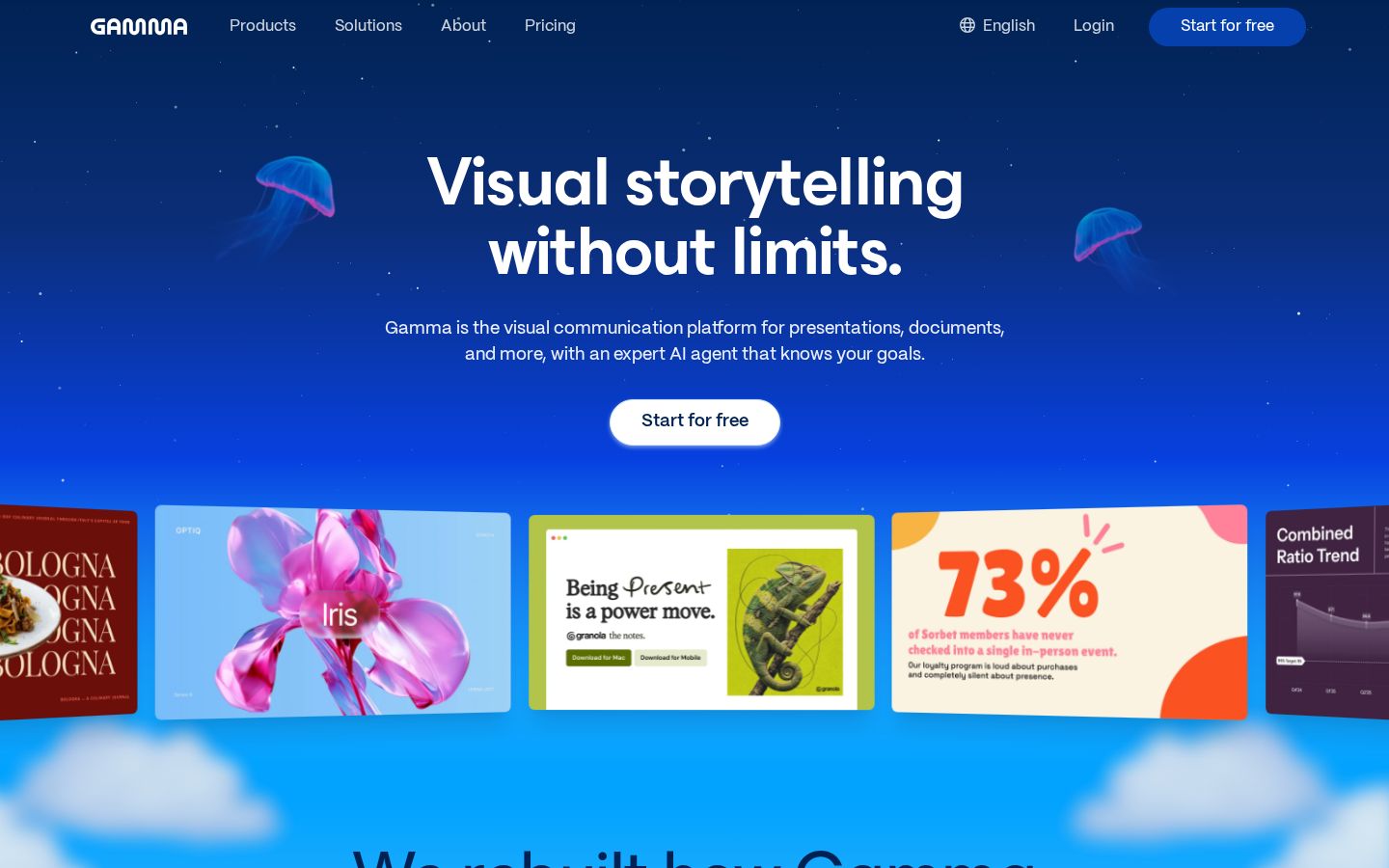
You know what you want to say, but staring at a blank slide brings your progress to a halt. You have your bullet points, yet you cannot decide what order to present them in or how they should look. Gamma is a service that helps you work out the structure and design of presentations and documents from this stage. Its official website describes a workflow in which you draft through a conversation with AI, then edit and finish the result yourself. Gamma’s official website
There is more to consider than how polished the first draft looks. Can you preserve your own wording and supporting evidence, change the order of your explanation, and deliver the result in the format your audience needs? Using a short explanatory presentation as an example, this article walks through the features, pricing conditions, and steps to follow while checking your work.
What is Gamma?
Gamma is a visual communication service for creating presentations, documents, websites, and more. You can describe a topic in words or start with prepared text or existing files, then combine AI revisions with manual editing. Product overview
The editorial team sees it as a workspace for giving shape to what you want to explain. If you already know your conclusion, organize it along with the supporting evidence before providing it to Gamma. If the structure is still unclear, begin by drafting possible headings to help you think it through. Choose your starting point based on where you are in the process.
For example, a presentation introducing a new service needs different pages depending on whether readers are hearing about it for the first time or comparing options before adopting it. The former will likely need background and an explanation of what the service can do; the latter will need conditions and an outline of what happens after adoption. Before choosing a design, we recommend writing one sentence that states what you want readers to decide.
What you can do: key features
Start with a topic, text, or an existing file
The official help describes three creation methods: Generate, Paste, and Import. These let you draft from a topic, organize existing text, or bring in files and other materials. When generating content, you can also choose to use no images or leave image placeholders. Official help on creating new content
If your wording is already settled, the editorial team recommends a workflow that avoids unnecessarily starting over from a blank page. If you are still developing the content, use the first draft to identify missing points rather than treating it as finished copy. Aligning the state of your input with the output you expect makes it easier to decide what needs revising.
Choose whether to preserve or rebuild existing materials
The documentation for the current Gamma 5 describes both importing PowerPoint or PDF files while preserving their layout and structure, and creating something new from existing content. The official guidance distinguishes between instructions for retaining the original wording and instructions for summarizing or restructuring it. Official help on importing
This distinction is useful when working with an existing proposal. Decide whether you want to preserve approved wording or reorganize the content into a shorter version. Identifying which passages should stay as they are and which should be reduced to key points also makes it clear what to check after generation.
Finish through conversation and manual editing
The official website introduces instructions for an AI agent, smart layouts, and editing tools that let you freely adjust placement. Alongside asking AI to make changes, you can revise the content and appearance yourself. Introduction to editing methods
When revising, put each change you want into words. An example from the editorial team would be: “This page is for comparison, so place the two options side by side using the same criteria.” Go beyond “make it better” and explain the decision you want readers to make. Also check whether added decoration has made the conclusion harder to find.
Export as PDF or PowerPoint
The official export help lists PDF, PNG, and PowerPoint. You can select the entire presentation or individual pages, and uploading a PPTX file is the method described for working with it in Google Slides. Choose the format that suits your purpose. Official help on exporting
It helps to decide in advance whether recipients only need to read the material, in which case PDF may suit, or edit it later, in which case PowerPoint may be appropriate. Whichever you choose, do not judge the work as finished solely from the generated view. Open the exported file and check how the text and diagrams fit.
Pricing plans
Plan names and feature differences
The pricing page reviewed on November 5, 2026, listed Free, Plus, Pro, and Ultra as plans for individuals. Since the retrieved text did not display paid plan prices, this article does not estimate them and instead summarizes the main differences that could be verified. Official pricing page
Plan | Key details verified | What to consider when choosing |
|---|---|---|
Free | Up to 10 cards per prompt; PDF and PPTX import and export | Try the workflow from creation through saving |
Plus | Up to 100 cards per prompt; removal of Gamma branding | How much you need to generate and whether branding is acceptable |
Pro | Custom branding, detailed analytics, and advanced sharing | Your team’s visual presentation and sharing needs |
Ultra | Higher-tier models and a larger AI usage allowance than Pro | Your ongoing generation needs and the models you use |
The pricing page has a toggle between monthly and annual billing and notes that taxes may be added depending on the region. Before subscribing, check the displayed currency, billing cycle, number of users, and initial payment amount on the same screen. The feature table alone does not tell you the final amount you will pay.
Free credits are not a monthly allowance
The official help states that new Free users receive 400 credits and that free credits are not replenished regularly. Paid plans replenish credits monthly, even with annual billing, and there is a limit on how many plan credits can roll over. Manual editing does not use credits and remains available even when your balance runs out. How credits work
Do not equate the number of credits with the number of finished presentations. The editorial team’s approach is to take one presentation and look at how much AI assistance is needed for the initial generation, structural revisions, and visual adjustments. The number of revisions needed to get the content right is a more useful guide to usage than simply the number of pages added.
We recommend trying one short project proposal instead of attempting a lengthy company introduction with the free allowance right away. Choosing a topic you can verify yourself makes it easier to spot explanations the AI has added, conditions it has removed, and wording it has changed. Use those results to decide which parts of the process you want to delegate.
How to use Gamma: from notes to your first explanatory presentation
The steps below follow the creation, editing, and export workflow described in the official help. The project and sample prompts are practice examples prepared by the editorial team; their generated results have not been tested.
1. Decide who will read it and what conclusion you want to convey
Start by deciding who the presentation is for and what you want them to assess. In the editorial team’s example, the aim is to “ask the person responsible internally to consider a proposal for a study session.” Write notes covering four points: the purpose, intended participants, planned activities, and the decision you want the reader to make.
Separate what has been decided from what remains undecided. If the venue is undecided, say so, and avoid treating a proposed date as confirmed. Organizing these details before giving them to AI provides a checklist for reviewing the output. If you include figures or examples, keep the supporting materials on hand as well.
2. Choose a starting method that fits the content you have
The official help explains how to select Generate, Paste, or Import from “Create New AI” on the dashboard. If you have notes, as in this example, consider a method that uses them. Generate is an option when starting with only a topic, while Import is an option when using a finished presentation or document. Choosing a creation method
If you want to preserve the original wording, make that intention explicit. The editorial team’s sample instruction is: “Leave any items marked as undecided that way. Do not add new figures or achievements.” Do not assume this instruction alone will prevent errors; use it as a set of conditions to check against the output.
3. Check the order of the headings
The guidance for Plan mode describes reviewing the plan and template before generating the content. Use this stage to check the order of your explanation rather than focusing on decoration from the outset. Explanation of generation modes
For the study session example, the order would be “Why are we holding it?”, “Who is it for?”, “What will we do?”, and “What do we need you to decide?” This is a sample structure from the editorial team. Read just the page headings in sequence to check whether the explanation flows. Also look for a structure that spends too long on background and leaves the requested decision unclear until the end.
4. Adjust text and diagrams to suit their purpose
Once the content is organized, improve readability page by page. Even when asking AI to rephrase text, clearly identify the conditions that must remain. Check that the meaning of figures, the time periods covered, and the units match your original notes.
Deciding what a diagram should accomplish before adding it makes it easier to choose the right kind. Use a sequence of steps to explain an order, a table with matching criteria to compare options, or a side-by-side contrast to show differences in approach. We recommend adding one diagram that helps readers make a decision rather than increasing the number of images unrelated to the explanation.
For the study session example, you could diagram the planned flow while keeping the intended audience and participation conditions in text. Avoid giving every piece of information the same visual weight: put the conclusion in the heading, with reasons and supporting details beneath it. Check whether the presentation guides readers through the information naturally.
5. Check the presentation view and the exported file
To export, open Share or the three-dot menu in the upper right, go to Export, and choose a format. Select All cards to save the entire presentation. The official help explains that exports reflect the appearance in Present Mode rather than the editing view. Steps for saving
The editorial team recommends opening the saved presentation separately and checking it from beginning to end. Review the figures in tables, line breaks, image cropping, and the final request. Even when all the text fits, the explanation may not connect smoothly from one page to the next. Reviewing the whole presentation for flow separately from inspecting individual pages makes these issues easier to spot.
For materials that other people will edit, make it clear which figures need updating and which details remain unconfirmed. Delivering a polished presentation and delivering materials that can be reused next time require different checks.
Who it is—and is not—suited to
The following reflects the editorial team’s assessment based on the features and conditions verified.
Suited to
- People who want to create a first draft of an explanatory presentation from notes or text.
- People who want to choose between AI assistance and manual editing as they review the structure and appearance.
- People considering both materials to distribute as PDFs and presentations to edit in PowerPoint.
Not suited to
- People who want to use generated text and figures directly in proposals without checking them.
- People who assume free AI credits are replenished every month.
- People who expect an exact match to the original materials without checking the exported file.
How it differs from similar tools
Canva’s official website offers many presentation templates and supports online editing and collaboration. Gamma emphasizes starting with a topic or existing content, developing a structure, and building the presentation through conversation. Canva templates, Introduction to Gamma
A useful way to compare them is to decide whether you want to start with a visual template or work out the structure of your explanation first. Both offer multiple ways to create content, so this is not a claim that only one can perform a particular task. Try the same short presentation in each and assess which parts are easy to revise and which still need a person’s final adjustments.
Things to keep in mind
Check the branding included in free exports
The official help states that PDFs and PPTX files exported from a Free workspace include a Gamma badge. It explains that this also applies to materials created on a paid plan if the workspace is on Free when they are exported. Branding conditions
For client deliverables or materials intended for external audiences, check what appears in the finished file. Do not assume that changing your subscription automatically updates files you created earlier. Export them again under the conditions you need and review the result.
Pay attention to differences between import methods
The official help distinguishes Gamma 5 imports from the older Classic Generator method. Classic Generator imports text rather than the original design, so check which method you are using if you want to preserve an existing layout. Differences between import methods
Before starting, check content preservation and layout preservation separately. We recommend testing with a short document first and comparing the result, including tables and diagrams, before moving on to longer materials.
Conclusion
Gamma is an option for people who want to develop a presentation’s structure and appearance together and finish it themselves after generation. Start by turning a short set of notes into one explanatory presentation, then try checking the content, editing it, and exporting it. Understanding how the free allowance works and what you need from the output will help you decide whether it fits your presentation workflow.
Sources (page text checked on November 5, 2026)
- Gamma’s official website: Types of content you can create, conversational editing, and manual editing.
- Pricing page: Plans and feature differences. Paid plan prices could not be verified in the retrieved text.
- New content creation guide: Generation methods, modes, and image settings.
- Import guide: Preserving and restructuring original materials, and differences from the older method.
- Credits guide: Initial allowance, replenishment, and manual editing.
- Export guide: Formats, steps for saving, and badges.
- Canva presentation templates: Comparison reference.