What Is Fireflies.ai? Japanese Transcription, Pricing, and Meeting Notes Explained
Review meeting transcripts and summaries together with Fireflies.ai. Explore Japanese support, pricing and usage limits, and how to review meeting notes from recordings.
Information checked on November 5, 2026. We reviewed the official website and help articles. We did not record meetings, submit files, or test transcription accuracy. Prices are in US dollars.
Introduction
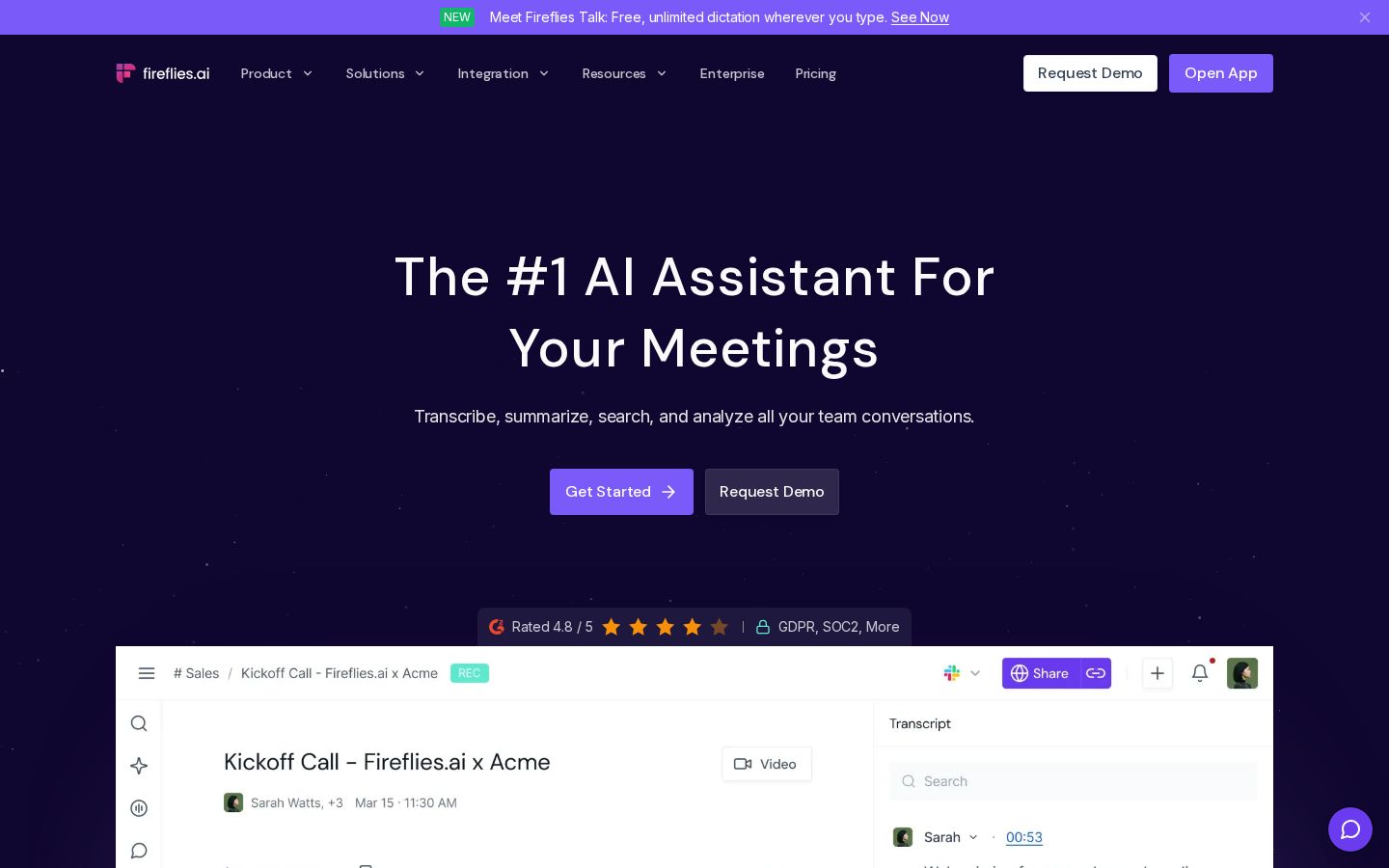
Listening back to recordings, finding decisions, and passing them on to the people responsible can take time after a meeting. Fireflies.ai is a service worth considering if you want to organize this work. Its official website describes features that bring conversation transcription, summaries, search, and analysis together. Official Fireflies website
Creating meeting notes involves more than automatically generating text. To make the record useful, you need to check who said what, whether something was a decision, and who needs to act next. This article focuses on reviewing meetings afterward, covering features, pricing, and how to get started with a recording.
What Is Fireflies.ai?
Fireflies offers several ways to record conversations, including a meeting bot, a browser extension, desktop and mobile apps, and recording uploads. The official help documentation explains that it can handle existing audio and video as well as online meetings on platforms such as Zoom and Google Meet. Fireflies overview
When choosing how to use it, start by considering how your meeting takes place. The right starting point depends on whether you have a scheduled online meeting, an existing recording, or an in-person discussion. This article focuses on uploading a short recording whose content you already know and reviewing the output.
Japanese is included in the official list of supported languages. However, Auto-Detect, which identifies a meeting’s main language, is distinct from Multi-Language, which handles multiple languages within a single meeting. Supported languages
Our editorial team recommends testing audio similar to your own meetings rather than focusing on the number of supported languages. Include the kinds of content you actually handle, such as people’s names, product names, and conversations with frequent brief acknowledgments, and see how much work it takes to review and correct the results.
What It Can Do: Main Features
Review Transcripts and Summaries Together
Each meeting’s Notepad has areas for reviewing summaries and notes alongside the full transcript. Search and editing tools let you refine the record while referring back to the conversation. Notepad guide
Our editorial team recommends using the summary to get an overview, then returning to the original remarks to verify important points. In particular, “consider” and “implement,” or “preferred date” and “confirmed date,” have different implications at work even when the surrounding sentences look similar.
To make meeting notes easier to read, it helps to separate sections that preserve the order of remarks from sections that bring decisions together. Rather than simply deciding whether to use the automatic summary as the final version, identify what you need to cross-check to make the record ready to share.
Upload Existing Audio and Video
The official upload guide lists support for MP3, M4A, WAV, MP4, and WEBM. File size and duration limits apply. After uploading, you can review the transcript, summary, action items, and other output. Uploading files
This approach is an option if you want to organize meetings or interviews you have already saved. Before extending automatic participation to more meetings, you can compare recordings with the output and consider the accuracy and workflow you need.
Our editorial team would start with a recording covering one short agenda item. Using a very long recording for an initial evaluation can make it harder to know what to check. However, the official guide says a recap is generated for recordings longer than three minutes, so pay attention to duration if you also want to try the summary feature.
Ask Questions About a Meeting and Find Relevant Passages
AskFred is an AI assistant you can ask questions about meeting content. The official Notepad documentation gives examples such as asking about key discussion points and action items. You need to check AI feature allowances separately from standard transcription limits. Notepad and AskFred
Specific questions also clarify what you want to check. An example from our editorial team would be: “I want to organize the tasks needed before the next meeting and the people explicitly named as responsible during the conversation.” If no one was assigned, cross-check the remarks rather than relying solely on whether a name appears in the answer.
It is also important not to treat an answer as a substitute for a decision that was never made in the original meeting. If you find an unresolved matter, leave it marked as unresolved in the notes. Keep the ability to produce a concise answer separate from whether an agreement was actually reached.
Organize Meetings and Choose Who to Share Them With
Meetings gives you a list of your meetings, which you can organize using default channels such as Uploads or channels created for specific purposes. The documentation also covers actions such as renaming, sharing, and downloading. Managing meetings
Our editorial team recommends using consistent names that identify the date and topic. A title like “Meeting” is hard to find later, so agree on a team naming convention such as “Project name · Topic · Date.” The more often you revisit the same content, the more important it is to organize records so you can find them.
Pricing Plans
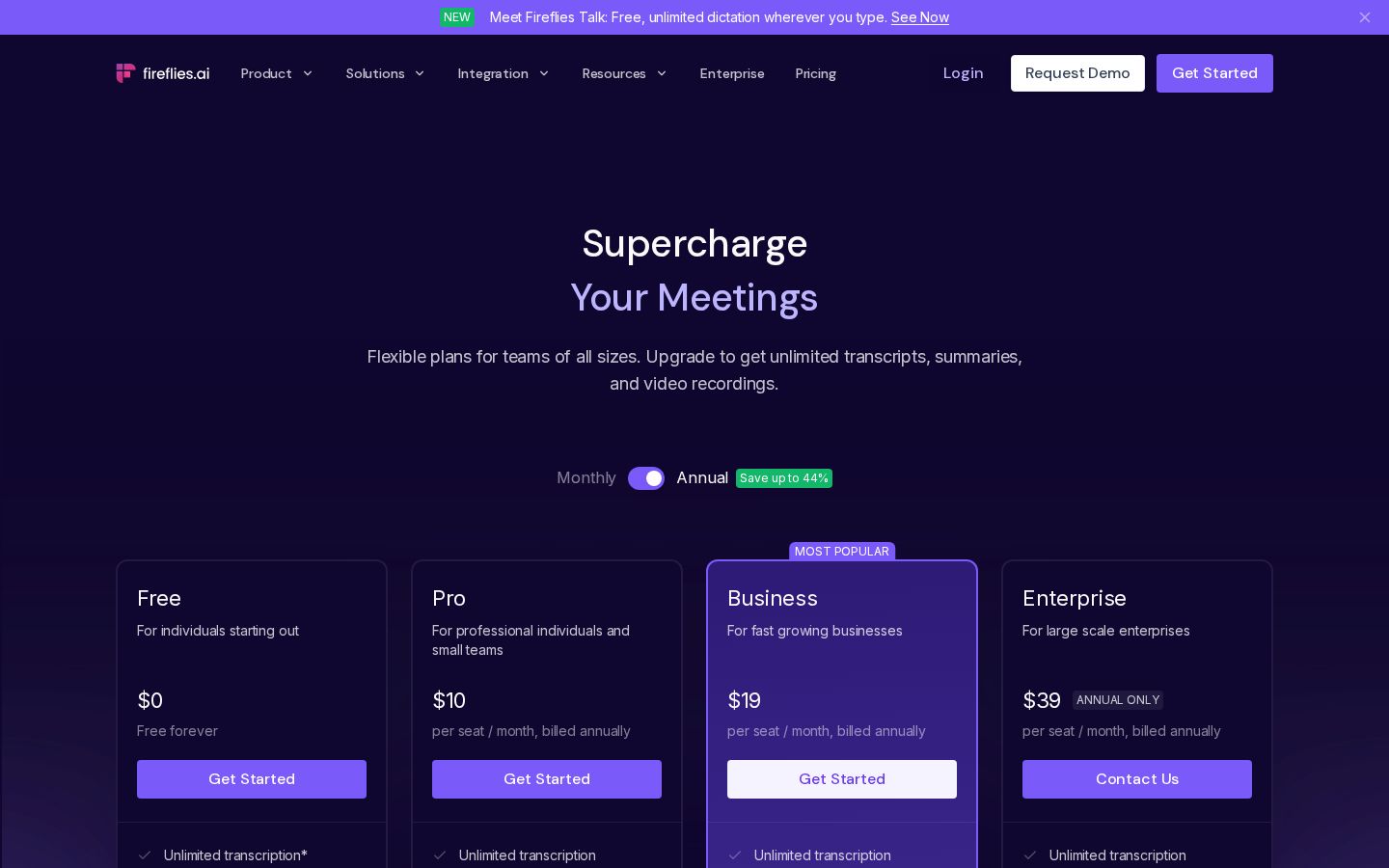
The pricing page reviewed on November 5, 2026 lists Free, Pro, Business, and Enterprise. Paid prices in the table below are monthly equivalents per seat, billed annually. Do not confuse them with monthly billing prices. Official pricing
Plan | Monthly Equivalent, Billed Annually | Key Differences Identified |
|---|---|---|
Free | $0 | Limited AI summaries; free to get started |
Pro | $10/seat | Summaries, recording downloads, and more |
Business | $19/seat | Conversation analytics, Multi-Language Mode, and more |
Enterprise | $39/seat | Organization-focused features such as SSO and storage management |
Rather than relying solely on the word “unlimited” on the pricing page, check storage capacity, upload processing allowances, and AI credits separately. The free plan guide also distinguishes transcription credits, used for summaries and file transcription, from AI credits, used for features such as AskFred. Free plan explanation
At the time of review, the pricing page described Free storage capacity as per team, while the help documentation described it as per seat. The pages also differed on which plans include video features. For that reason, this article does not present the conflicting storage figures or video terms as definitive and recommends checking what is shown for your account before subscribing.
Also pay attention to upload processing limits and what happens when you exceed them. The official Rate limits page includes both a statement that there are no overage charges and an example for large teams that specifies an overage rate. This article does not make a definitive statement about overage charges. Official explanation of usage limits
Our editorial team recommends comparing not only the number of meetings you hold each month but also how you will submit recordings for processing. The limits you need to check may differ between having the service join meetings and uploading batches of saved files.
Set out your intended workflow first, including whether everyone you share with needs a seat or only those who edit will use the service. Before simply multiplying the listed price by your headcount, check the permissions required for viewing, editing, and administration to make comparisons on a consistent basis.
How to Use It: Review Meeting Notes from a Recording
The following instructions are based on the official help documentation. Before using the service, confirm which recordings you are allowed to process and who you may share them with. We did not submit recordings or create an account while preparing this article.
1. Prepare One Recording That Is Easy to Review
Choose a conversation whose content you know and write down about three things you want to check, such as the topic, decisions made, and next steps. If you also know who spoke, it will be easier to check how speakers are handled.
If your first recording has many inaudible passages, it can be difficult to distinguish recognition issues from problems with the original audio. Our editorial team would first check the basic workflow with clearly audible speech, then evaluate recordings closer to actual working conditions.
2. Open Uploads from Meetings
According to the official web instructions, go to Meetings on the left, open Uploads, and select a file using Browse Files or by dragging it in. In the upload dialog, specify the audio language and, if needed, set the meeting date and time. Upload instructions
The date helps you find the record later. Even if you upload an old meeting today, distinguishing the meeting date from the processing date makes it easier to cross-reference other records.
3. Open the Meeting After Processing
Once the upload has finished processing, you can open the recording from the meeting list to view its transcript, summary, and other output. The official guide also explains that transcripts and summaries will not be generated if speech cannot be detected in the recording. Upload guide
When the results appear, first check that both the beginning and the end are included. Rather than assuming it is the correct record based on the filename alone, we recommend confirming that the intended conversation was processed.
4. Cross-Check Names, Numbers, and Decisions
In Notepad, you can search within the transcript and make corrections using the edit icon. According to the official documentation, changes are saved automatically. Reviewing and editing transcripts
Our editorial team would check proper nouns and numbers first, then listen again to the passages around decisions. “We’re aiming to finish this month” is not the same as “The deadline is the end of this month.” Prioritize differences that affect how the meeting notes will be used.
If a remark is ambiguous, leave it flagged for clarification rather than filling in its meaning to make the writing smoother. It is important not to turn information that cannot be established from the original audio into a definitive record based on guesswork.
5. Make Next Steps Clear Enough to Act On
If the summary includes action items, check that each has an owner, a task, and a deadline. Rather than compressing everything into a single line, we recommend wording that makes clear who needs to check what. Leave deadlines blank or mark them as undecided if they were not agreed during the meeting.
For example, an item that simply says “Send the materials” may not identify which materials or who should receive them. Review the original remarks and verify the necessary information before adding it. Evaluate whether the record is actionable rather than how many items were automatically generated.
6. Set Access Permissions Before Sharing
The official sharing guide describes opening Share, selecting Privacy Setting, setting it to Only Owner, and then inviting specific people. There is also a setting that allows anyone with the link to view the meeting, so check access permissions for the meeting before sending it. Choosing who can access a meeting
Consider whether you need to share the whole meeting or whether an organized list of decisions is enough. Defining what recipients need for their work can also reduce how much they have to read. A useful practice is to check separately that sharing settings have been changed and that the recipient can actually access the content.
Who It May—and May Not—Suit
In our editorial team’s view, Fireflies is an option for people who want to search meeting records later and cross-check summaries against full transcripts before sharing them. Teams that want to organize conversations by project, including past recordings, may find it worth trying the meeting list and review workflow.
However, we do not recommend distributing generated summaries as finalized meeting notes without reviewing them. For meetings where recording or processing through an external service is not permitted, you also need to check your organization’s operating requirements before considering the convenience of the features.
If a one-line conclusion is enough for each meeting, consider whether adopting the service would create more records than you need. Judge it by whether you can extract the information needed for the next action, rather than by how much information it can produce.
How It Compares with Similar Tools
Notta also offers transcription and summaries of meetings and recordings, along with the ability to ask questions about meeting content. Its official website also introduces features for creating outputs such as slides and diagrams from meetings. Official Notta website
When comparing Fireflies, using the Notepad review process, meeting organization, and access controls covered in this article as criteria can make differences easier to see. We did not run comparative tests of Japanese transcription accuracy for this article, so we do not rank the tools on that basis. We recommend using the same recording to compare corrections needed, review time, and the output formats you require.
Things to Keep in Mind
When reading about the free allowance, distinguish between transcription, summaries, AI credits, and storage. Looking at just one limit and interpreting it as “everything is free and unlimited” could lead to a mismatch with your intended workflow.
Feature availability changes, and we found differences between the official pricing page and help documentation. This article distinguishes what we could confirm from those inconsistencies. If a particular feature will determine whether you subscribe, check its availability again on the current plan screen.
Meeting records also contain tentative ideas and individual remarks. Before sharing a summary, we recommend separating what was agreed from what was merely mentioned. This is a meeting-note review task separate from checking transcription accuracy.
Summary
Fireflies.ai brings together meeting transcripts and summaries so you can find and share information. It supports Japanese, but it is important to evaluate the correction and review workflow using your own recordings.
Start by choosing one recording you are allowed to process and check whether you can extract the information you need. Including storage capacity and AI feature allowances in your comparison will help you assess pricing in relation to how you will actually use the service.