What Is ElevenLabs? A Simple Guide to AI Voice Generation, Features, Pricing, and Getting Started
Create Japanese narration from text with ElevenLabs. Learn how to choose voices and models, understand monthly credits, and generate and polish short audio clips.
Information checked on November 5, 2026. Features and pricing were verified against the text on the official pages. Prices reflect monthly billing for creative production. This is not a hands-on review of Japanese pronunciation or the user experience.
Introduction
Your video script is ready, but recording the narration is holding things up. Every small change to the text means recording it again from the beginning. ElevenLabs is an AI service that turns text into speech and lets you explore different voices and delivery styles. Its official Japanese-language page also walks through entering text, choosing a voice, generating audio, and downloading it. Official introduction to Japanese speech generation
What matters is not just whether the voice sounds natural, but whether it conveys the words you need correctly. Check product names, numbers, conditions, and pauses, then refine the audio so it works with your video. This article focuses on creating short narrations, covering the free allowance, paid plans, and steps to get started.
What Is ElevenLabs?
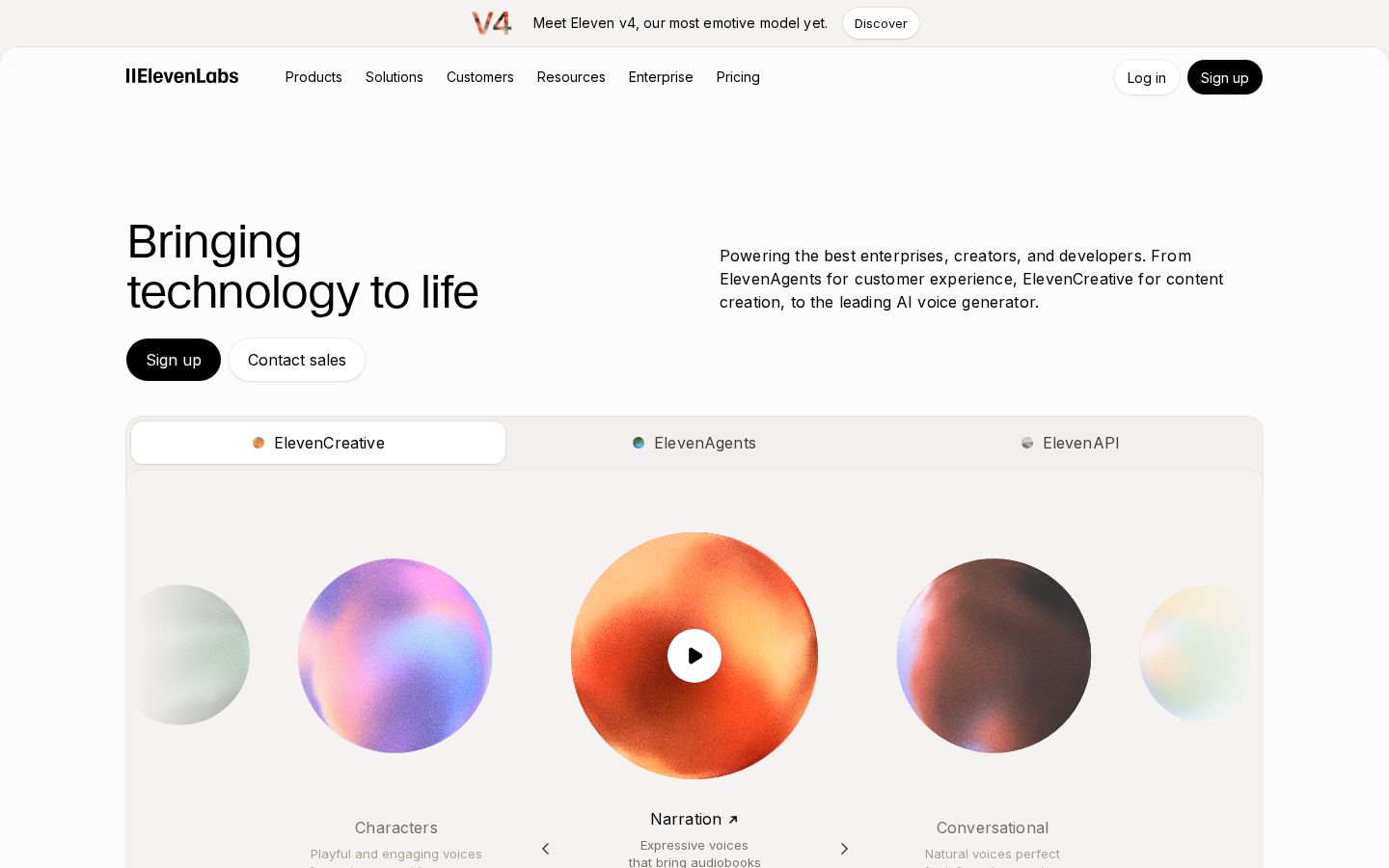
ElevenLabs offers ElevenCreative for producing audio, video, and other content; ElevenAgents for conversational agents; and ElevenAPI for developers. This article focuses on Text to Speech and Studio for creative production. Keep audio generation separate from the use case of building customer service systems. Product overview
Text to Speech converts the text you enter into spoken audio. To create audio, you choose a voice and model, then adjust the available settings. The official guide also explains that the combination of voice, model, and settings affects the result. Text to Speech guide
The editorial team recommends starting with one short explanation. Before expanding your list of voice candidates, decide who the audio is for and what it needs to communicate. A calm set of instructions calls for a different delivery from a conversation between characters. Defining the purpose helps you choose a voice that fits the task as well as your preferences.
What You Can Do: Key Features
Create Japanese narration from text
The Japanese-language page explains how to enter Japanese text, choose a voice, and save the generated audio as an MP3. It also suggests using Text to Speech for short audio and Studio for more complex productions. Steps for creating Japanese audio
The editorial team's suggested uses include product instructions, short announcements, and video introductions. Even when a sentence is clear in writing, its conditions may be hard to follow by ear alone. Keeping sentences short and organizing them in the order of subject, action, and result makes it easier to identify what needs changing when you listen back.
Choose a voice and shape its delivery
The official guide introduces ready-made voices, Voice Library, Voice Design, and voice cloning. Alongside the characteristics of the voice itself, the model determines which settings and forms of expression are available. Voices and models explained
You can start by comparing existing voices without creating a custom voice of your own. The editorial team's approach is to use the same short passage and check clarity, how sentences end, and how well key words come across. Comparing different passages makes it harder to distinguish differences in the voices from differences in the scripts.
When choosing a voice, test sections with numbers and extended explanations as well as the opening line. A bright first impression may suit your needs, yet the voice may sound too restless when reading precautions or become harder to follow in longer sentences. The key is to choose material close to what you normally use.
Work with longer audio and video in Studio
According to its official description, Studio supports long-form narration from scripts and documents, podcasts, audiobooks, and more. Audio projects let you organize chapters and arrange narration, music, and sound effects on a timeline. Video projects are also available. Official introduction to Studio
The checks involved in creating one short audio clip differ from those needed to bring multiple scenes together. The editorial team recommends dividing a long script into chapters or topics and deciding what each part should do. Mapping out speaker changes and pauses in advance gives you clear criteria for the finished piece.
Adjust content and audio placement after generation
Studio's documentation covers paragraph generation history, locking, timeline clip adjustments, and audio and video export. After making changes, you export again to include them in the finished file. Studio production guide
Once you have settled on a delivery, avoid changing it unnecessarily and focus on the specific parts that need work. For example, if the explanation is in the right order but the pronunciation of one word bothers you, there is no need to restructure the entire script. Keeping a record of what to retain and what to change also makes it easier to compare versions.
Pricing Plans
Monthly prices for creative production
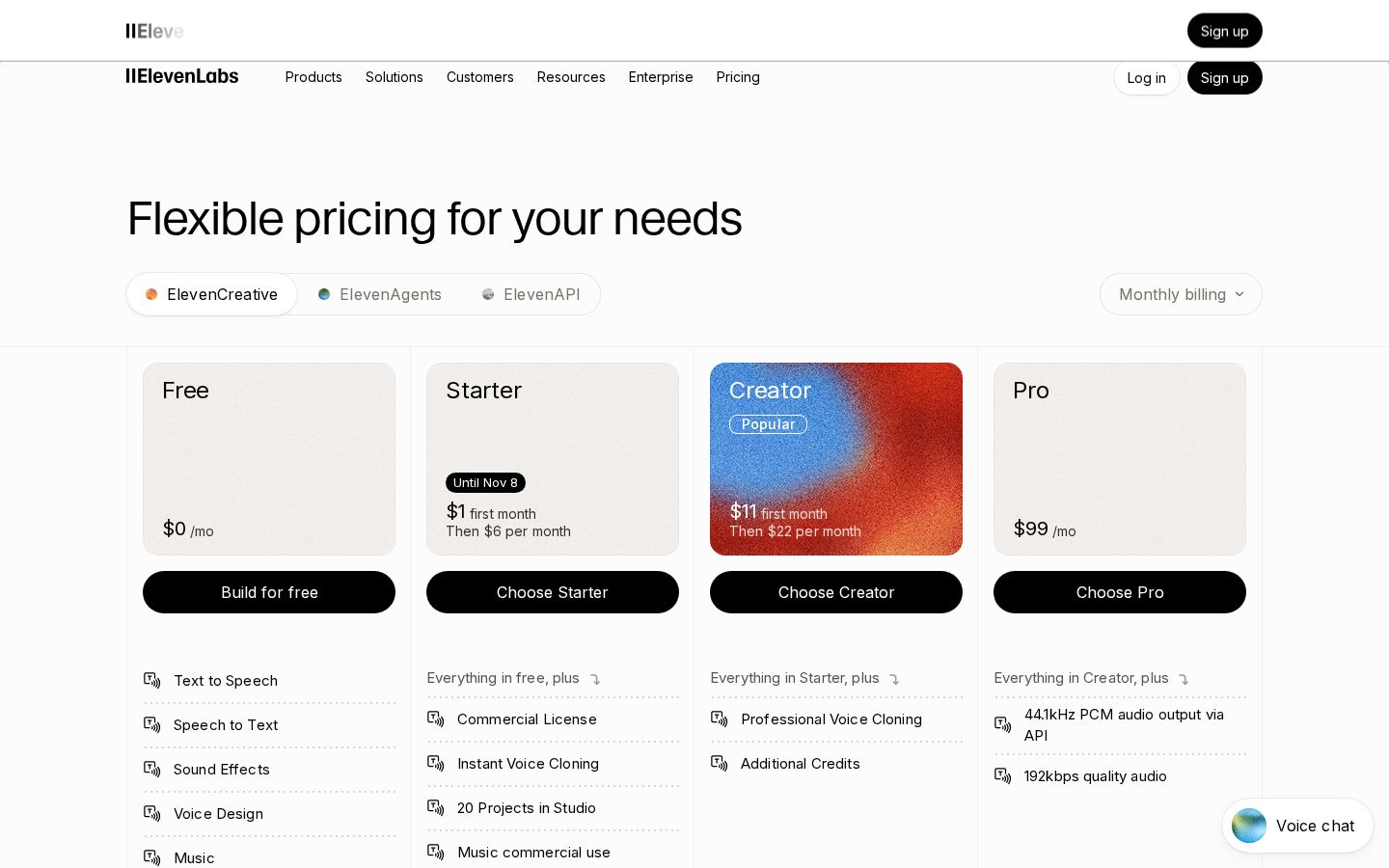
These are the monthly prices displayed for ElevenCreative when checked on November 5, 2026. Prices are listed in US dollars, excluding taxes and similar charges. Do not use this table to estimate separate charges for ElevenAgents or the API. Official pricing page
Plan | Listed regular monthly price | Monthly credits | Key additions |
|---|---|---|---|
Free | US$0 | 10,000 | Try speech generation and other features |
Starter | US$6 | 30,000 | Commercial license, Instant Voice Cloning |
Creator | US$22 | 121,000 | Professional Voice Cloning, purchase of additional usage |
Pro | US$99 | 600,000 | Expanded output quality options and other enhancements |
Scale | US$299 | 1,800,000 | 3 seats, collaborative production for teams |
Business | US$990 | 6,000,000 | 10 seats and other features |
Enterprise | Contact for pricing | Custom | Organization-specific terms |
At the time of checking, Starter also displayed a first-month price of US$1, and Creator a first-month price of US$11. However, an old promotion showing an end date remained at the top of the page, so we have not confirmed that these discounts apply. The table uses regular monthly prices; check both the initial charge and the renewal price when signing up.
Distinguish credits from the length of the finished audio
The pricing page explains that monthly credits are shared across features and that consumption per character varies by model. Do not treat the monthly allowance as a guarantee of a specific number of audio minutes. Check the model and operations you plan to use. Usage explained
The editorial team's approach to estimating usage is to separate the amount of text in the planned final script from the number of versions you will generate. Even for one short announcement, comparing several voices, revising the script, and regenerating audio produces drafts beyond the final audio. We recommend choosing a voice with a representative short passage before moving on, rather than repeatedly generating the full production script from the outset.
When adding more features to your workflow, also consider how each will draw on the same allowance. You will use your balance differently in a month devoted to narration than in one where you try other generation features as well. Choose a plan that fits your actual production process, including the output quality and number of users you need.
Check what the commercial license covers
The pricing table lists Commercial License among the additions included with Starter and higher plans. If you intend to use the audio in work-related videos or monetized content, check the plan you hold when generating it and the terms for the features involved. Being able to create something for free does not mean you have also confirmed the conditions for its intended use.
How to Create a Short Japanese Narration
This workflow follows the official Text to Speech guide. The passages and checks below are practice examples from the editorial team, not actual generated results.
1. Prepare a short script and a pronunciation checklist
First, prepare a passage whose accuracy you can verify yourself. For practice, a fictional announcement such as “The exhibition starts at ten in the morning. Please give the name on your reservation at reception” is fine. Choose text that makes the time, intended audience, and action clear.
Separately from the script, list the words you want to make sure are read correctly, such as product names, place names, abbreviations, and numbers. Go beyond having the text ready: establish how it should be spoken. If you are using subtitles alongside the audio, these notes can also help keep the wording consistent.
2. Enter your text in Text to Speech and choose a voice
Type or paste your passage into the Text to Speech input field and choose a voice. The official guide emphasizes the impact of voice selection on the result. Start by narrowing down candidates that fit your purpose and preparing to test them with the same script. Basic controls
You do not need a long list of selection criteria. For instructions, focus on phrasing and a calm delivery. For a short ad, consider how easy the opening is to understand and how clearly the product name comes across. Choosing around two priorities before listening helps you move beyond comparing personal preferences.
3. Check the model and available settings
After choosing a voice, check the model and settings. The official guide explains options such as speed and stability, but not every setting is available with every model. Adjust them according to the guidance for your model. Settings guide
The editorial team recommends avoiding changes to many settings at once. Listen to the first result and describe what concerns you: the speed, sentence endings, or pronunciation. Then change one condition at a time and check which adjustment serves your purpose.
Do not assume that identical settings will produce identical results every time. The official documentation also explains that generated results vary. What matters more than the values themselves is listening all the way through the audio you intend to use.
4. Generate the audio and check meaning and pronunciation
Use Generate to create the audio, then listen while comparing it with the script. The editorial team checks key words first, then numbers and conditions, followed by speed and pauses. Even if the audio is pleasant to listen to, an incorrect time or product name needs fixing.
On the first listen, check the content against the script. On the second, listen without looking at the screen. Check whether you can understand who needs to do what without seeing the text. If the explanation feels crowded, consider splitting a sentence into two instead of trying to solve everything through the voice.
If you are adding the narration to a video, also check how the spoken words align with the scenes. When the narration says “Press here,” make sure the relevant item is visible on screen. Review how natural the audio sounds on its own separately from how clearly it explains the visuals.
5. Save the audio and check it in its intended setting
The official guide says you can retrieve audio using the download button immediately after generation or from your history. The Japanese-language instructions show how to save it as an MP3. Saving instructions, Japanese audio workflow
Play the saved file too, and check that its beginning and ending are as intended. If you are adding it to a video, listen again with the music included. A voice that is clear on its own can be buried under other sounds in the finished video. Judge it by whether the necessary information can be heard without effort.
We also recommend keeping the final script together with the audio version you chose. If you cannot tell which text produced the audio, it becomes harder to compare versions when revising one section later. Keeping the script date, voice used, and selected file together makes it easier to begin the next revision.
Who It Suits—and Who It May Not
The following reflects the editorial team's assessment based on the features and pricing checked.
A good fit for
- People who want to create narration from short explanations or video scripts.
- People who want to try voices and models to find a delivery that suits their purpose.
- People who want to explore longer audio or combining audio with video in Studio.
Not a good fit for
- People who do not want to include a step for checking proper nouns and numbers by listening back.
- People who want to estimate costs from the finished duration alone without checking generation volume or the number of drafts.
- People who expect one setting to produce the same speaking style for every passage.
How It Compares with Similar Tools
Murf also officially offers text-to-speech generation with controls for speed, pitch, pauses, pronunciation, and more. With ElevenLabs, alongside Text to Speech for choosing voices and models, you can also consider producing work that combines audio and video in Studio. Murf features, ElevenLabs Studio
For this article, we have not used the same script to measure which sounds more natural. To compare them, test specialist terms, numbers, and short conversations from your own scripts under the same conditions, and check how easy it is to make corrections. We recommend choosing based on the process required to get usable audio, rather than the number of voices available.
Things to Keep in Mind
Prioritize guidance for the specific model
The official Text to Speech guide gives general information about speed settings, but also includes model-specific guidance stating that they are unavailable in Eleven v3 and v4. Do not assume every model has the same controls; check the instructions for the model you have selected. Models and settings
Do not confuse project limits with generation allowances
Treat the number of Studio projects you can keep and your monthly credits as separate limits. The official pricing page and Studio help listed different project counts, so this article does not provide a specific limit. If you plan to store many projects, check the current conditions in your account interface. Pricing page, Studio limits
Conclusion
ElevenLabs is an option for people who want to turn text into speech and refine the result by choosing voices and delivery styles. Start with a short Japanese script and try the full process, from checking key words to playing the saved file. Understanding the terms you need and the generation volume—including drafts—makes it easier to choose a plan for ongoing use.
Sources (page text checked on November 5, 2026)
- Official ElevenLabs website: Product categories.
- Japanese Text to Speech: Japanese text input and saving audio.
- Text to Speech guide: Voices, models, settings, generation, and history.
- Pricing page: Monthly prices, credits, and licenses.
- What is Studio?: Audio and video projects.
- Studio guide: Editing and exporting.
- Studio limits: Differences in the project counts listed here and on the pricing page.
- Murf Text to Speech: Comparison tool.