What Is Descript? Text-Based Video Editing, Pricing, and Japanese Support
Explore Descript’s text-based video editing, audio adjustments, subtitles, and exports. Learn how Japanese transcription differs from translation and what to check when reviewing pricing.
Information checked: November 5, 2026. This article is based on a review of the text on official pages. We did not edit videos, purchase a subscription, or export files. Prices are in US dollars.
Introduction
When editing an interview or explainer video, it can be helpful to decide which remarks to keep by reading them as text. Descript links transcripts to video and audio, letting you edit the content by deleting or moving text. Official video editing overview
For users in Japan, language support is one of the first things to check. At the time of our review, the official help documentation listed automatic Japanese transcription as unsupported. This is separate from translating subtitles into Japanese, so avoid subscribing on the assumption that you can edit Japanese videos directly through text. Supported transcription languages
This article uses a short interview in a supported language as an example to explain how editing works, outline pricing, and describe what to check. It is not a hands-on review measuring processing speed or editing accuracy.
What Is Descript?
Descript displays imported audio and video as text, allowing you to edit based on what was said. The official guide explains that deleting text cuts the corresponding audio and video, while moving text also moves the associated media. Edit like a document
In our editorial assessment, Descript is worth considering for tasks that involve adjusting the order and length of a discussion. It helps to think of the process in two stages: first, understand the content through text, then check how it flows by watching and listening.
An important distinction is that changing text can mean different things. Editing out a spoken remark is separate from correcting a transcription error. Make sure you do not delete a remark when you only meant to fix a misrecognized name.
A video’s value is not determined solely by how concise its text is. Reactions and pauses also convey information, so avoid trimming solely as you would when making a written draft easier to read. Check what the video communicates when watched.
What You Can Do: Key Features
Cut and Rearrange Video and Audio Through Text
Selecting text in the script and deleting, copying, or moving it applies those changes to the corresponding media. The official documentation also explains how to restore deleted sections. Text-based editing
Our editorial team recommends first deciding which sections to keep for each topic. Before fixing every small hesitation, check that questions and answers match and that explanations are not repeated.
After making a cut, play back a slightly longer section rather than just the sentences immediately before and after it. Even if the text reads naturally, the speaker’s tone or gaze may change abruptly, so assess the visual continuity separately.
Distinguish Transcript Corrections from Edits to Spoken Content
Correct lets you fix a transcript without changing the original audio or video. The official instructions describe selecting a word and using Correct to change one occurrence or multiple occurrences of the same word. Correcting a transcript
Errors in proper names and numbers do more than stand out in subtitles; they can change the meaning. Our editorial team recommends cross-checking the original audio, official names, and reference materials to verify both what was said and how it should appear on screen.
For example, correcting the spelling of a company name and removing a number that someone said incorrectly serve different purposes. Changing the text alone does not change the original speech, so be clear about what your correction needs to cover.
Adjust Audio and Ask AI for Editing Help
Studio Sound is described as a feature for reducing background noise and echo and adjusting audio. Underlord is an AI assistant that makes edits and suggestions in response to instructions. Studio Sound Video editing
Our editorial team recommends comparing the same section before and after processing. Along with reduced noise, check whether word endings and quiet speech remain audible and whether the speaker’s characteristic way of speaking is preserved.
When asking AI to edit, clearly stating what to retain also makes the result easier to review. Explain the editing goal—for example, “Keep the conclusion and reasons, and shorten the repetitive introduction”—then check whether the result follows that intent.
Work with Subtitles, Translation, and Exports
Descript offers subtitle translation and audio translation as separate features. The official help documentation recommends finalizing your edits first, since changing the original composition after translation requires translating it again and spending additional AI credits. Translation and dubbing overview
Export options include video, audio, and subtitles. Saving a file locally is also separate from publishing it to a sharing page or an external service. Exporting and publishing
Our editorial team recommends deciding on the recipient’s required format in advance. Whether you need text permanently displayed in the video or a separate subtitle file determines which deliverables you need to check.
Pricing Plans
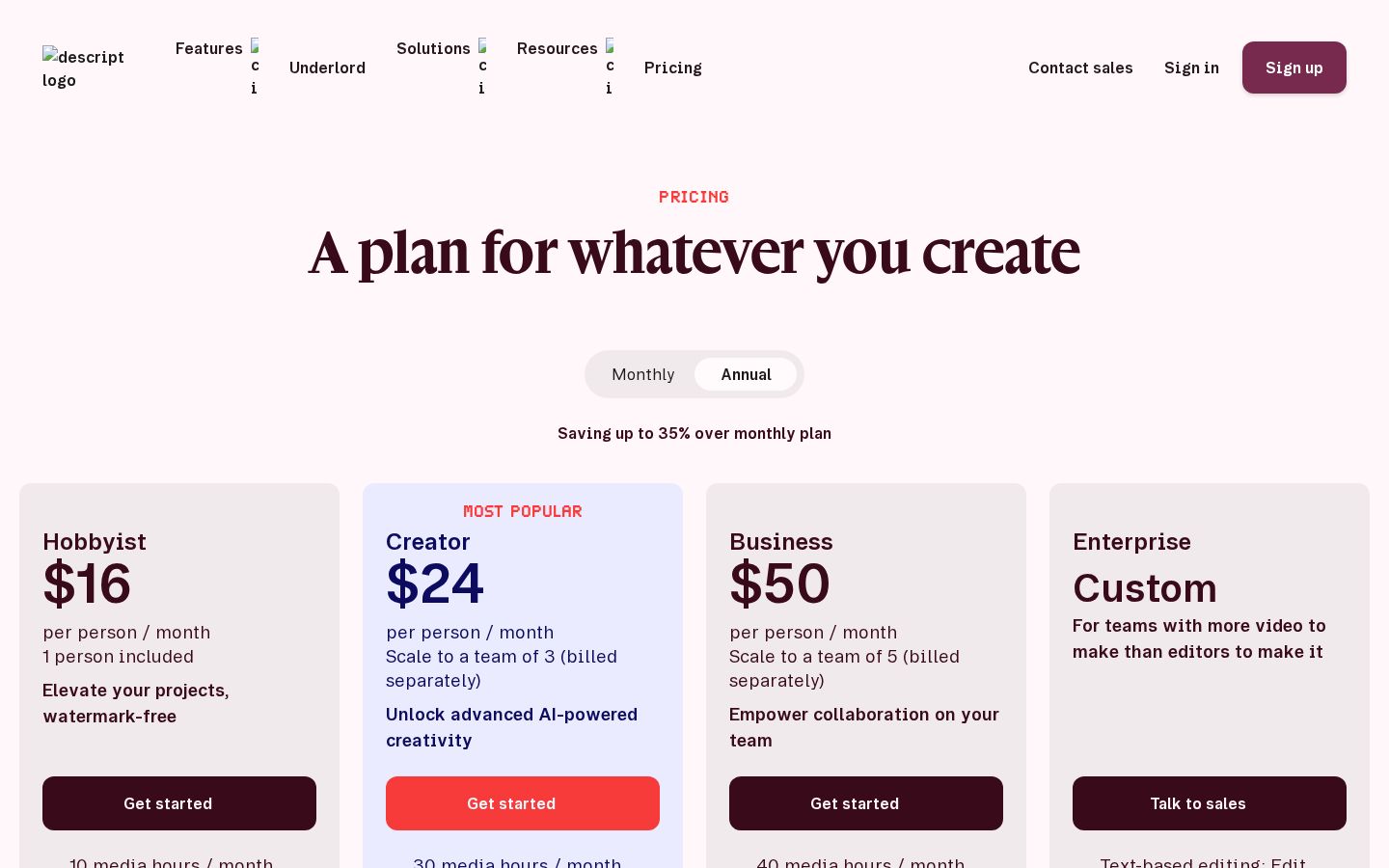
The official pricing page lists Free, Hobbyist, Creator, Business, and Enterprise. Standard paid plans display per-person prices and offer monthly and annual billing. Official pricing
The page text we retrieved showed two monthly rates for each plan: $16 and $24 for Hobbyist, $24 and $35 for Creator, and $50 and $65 for Business. We did not verify the billing-cycle toggle’s on-screen state for this article, so we do not present a single rate as the subscription price. You should check the billing cycle you select and the total amount charged on the official page.
Plan | Media Processing Allowance | AI Credits | Key Export Conditions |
|---|---|---|---|
Free | 1 hour per month | 100 initially | 720p, with watermark |
Hobbyist | 10 hours per month | 400 per month | 1080p, no watermark |
Creator | 30 hours per month | 800 per month | 4K, no watermark |
Business | 40 hours per month | 1,500 per month | Adds team features |
Enterprise | Custom terms | Custom terms | Check your contract terms |
The media processing allowance and AI credits are separate items. The 100 free credits are an initial allocation, not 100 credits granted every month. If you add more people, check the cost of additional editors as well.
Our editorial team recommends choosing a plan based on more than the length of your finished videos. When you turn a long recording into a short video, the imported footage and finished output differ in length. Estimate your source media volume separately from the AI processing you want to use.
For an initial check, use one short recording similar to the material you normally work with and follow it through importing, editing, subtitles, and export. Separating what you can assess on the free allowance from what requires checking paid-plan terms can help you avoid paying for more than you need.
How to Use Descript: Edit a Short Interview
The following combines explanations based on the official instructions with example checks from our editorial team. It assumes you are working with material in a supported language, not automatically transcribing Japanese audio.
1. Check the Source Language and the Sections You Plan to Use
The official help documentation states that transcription supports one language per file and does not support files containing multiple languages. Some features, such as filler-word detection, are also English-only. Supported languages and limitations
In our editorial example, we start with a short recording of one speaker explaining something. Compared with starting with hard-to-hear audio or a complex conversation, this makes it easier to distinguish issues with the editing process from issues with the source material.
2. Import the File and Review the Transcript
The official guide describes adding a file by dragging and dropping it into the script or using another available method, then transcribing it after processing and upload. Specify the language as needed. Automatic transcription
After importing, read sections from the middle and end as well as the beginning to check that the text matches the audio. For longer recordings, first locate the topics you want to edit.
3. Correct Recognition Errors, Then Refine the Structure
Use Correct to fix misrecognized names and numbers so you can identify the topics you want to keep. Then select and delete unnecessary remarks or rearrange the order of topics.
Our editorial team recommends checking whether deleting a sentence would remove context needed for the next explanation. Do not judge success solely by how much shorter the video becomes; consider whether someone watching it for the first time can understand it.
If you remove a question and keep only the answer, check that the topic is clear from the start. An edit may seem natural to someone who knows the original conversation while leaving viewers unsure who or what is being discussed.
4. Check the Audio and Subtitles
Adjust the audio as needed and refine the subtitle text and positioning. Checking the result on a short section before working through the whole video can help you identify issues earlier.
If you plan to translate, finalize the original composition first. Being able to select Japanese subtitle translation is separate from being able to transcribe Japanese audio. Even if Japanese appears among the translation languages on the pricing page, do not assume it is supported as an input language.
Subtitles need to use the correct words, but they also need to be readable within the time they appear. If they contain a series of long sentences, consider changing the line or segment breaks before removing information, keeping the subtitles aligned with what is being said.
5. Export the File and Play It Back
The official local export instructions describe selecting Video from Export, setting the destination to Local export, and checking the settings. You can save the result to your device as an MP4. Exporting a video file
For the final check, our editorial team recommends playing the saved file outside the editor. Review the beginning and end, subtitles, audio, watermark, and duration, and confirm that the intended sections are included.
Include the content and version in the filename to distinguish source material from finished files. When delivering a revised version, keep the save location and verified version organized so you do not accidentally select an earlier file.
Who It Suits—and Who It May Not
Who It Suits
In our editorial assessment, Descript suits people who want to organize interviews, explainers, podcasts, and similar content in supported languages around what is being said. It is an option for those who want to choose what to keep by reading text, then review the finished result as video.
It is also an option for people exploring a production workflow that includes audio adjustments, subtitles, and translation. Check in advance, however, that the features you want to use support the language of your material.
Who It May Not Suit
At the time of our review, it is difficult to recommend Descript to anyone who needs automatic Japanese transcription and the ability to edit video entirely through that transcript. Descriptions of its translation features alone do not establish that it meets this requirement.
If your work focuses on music or precise visual timing, it is also worth comparing Descript with your usual editing method. The key consideration is whether text-based editing fits the core of your work.
How It Differs from Similar Tools
OpusClip describes a workflow for creating short clips from source footage and adjusting subtitles and framing. Official OpusClip website
Our editorial team finds it helpful to compare the tools based on whether you want to restructure an entire discussion through text or find potential short clips in a longer recording. Even though both have editing features, the first task you want them to handle differs.
What You Want to Create | What to Look for When Comparing |
|---|---|
A video with a refined narrative structure | Ease of deleting, moving, and correcting spoken content |
Short clips | Clip selection, start and end points, and framing adjustments |
A translated version | Input language, subtitle and audio output languages, and ease of review |
Compare the tools using the same section of the same material, including the checks and revisions needed to finish. The number of automatically generated suggestions alone does not tell you how usable a tool is in practice.
Things to Keep in Mind
We found different counts of supported transcription languages across official pages. Rather than using the total as a selling point, this article refers to the help documentation that explains support for individual languages. For Japanese, we used that documentation’s statement that it is unsupported.
When rearranging remarks or extracting only part of a conversation, check that the speaker’s intent has not changed. Removing a negation, condition, or exception can change the meaning of the remaining sentence.
If you use AI to change the audio or visuals, understand how the result differs from the source material. Focus your assessment on whether the intended message is preserved, rather than on the fact that processing has been applied.
Conclusion
Descript is an editing service that treats spoken content as text to help structure video and audio. It is important to understand the difference between ordinary deletion and Correct, then check the sound and visuals at the end.
Before adopting it, check your source language, usage allowances, and required output formats. Start by treating Japanese transcription and translation as separate capabilities, then try the production workflow with a short recording in a supported language.
Sources
The text of all official sources was checked on November 5, 2026.